This page is part of RevSure’s Comprehensive FAQs, your all-in-one hub for answers on capabilities, data, security, scalability, configurability, and more. Click here to return to the FAQ home.
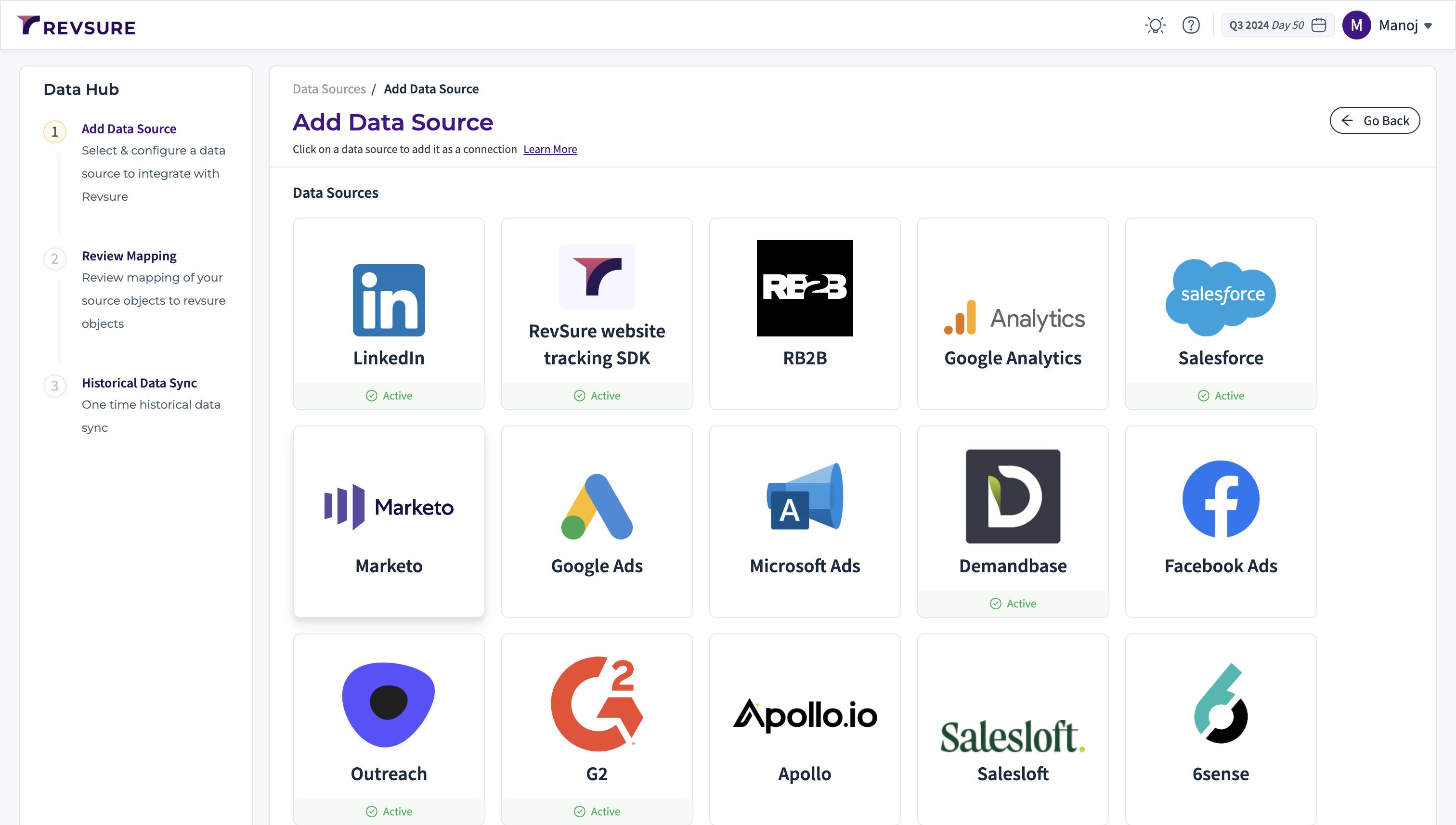
1. Navigate to the data-hub module in the RevSure account. Click on the Add data source button
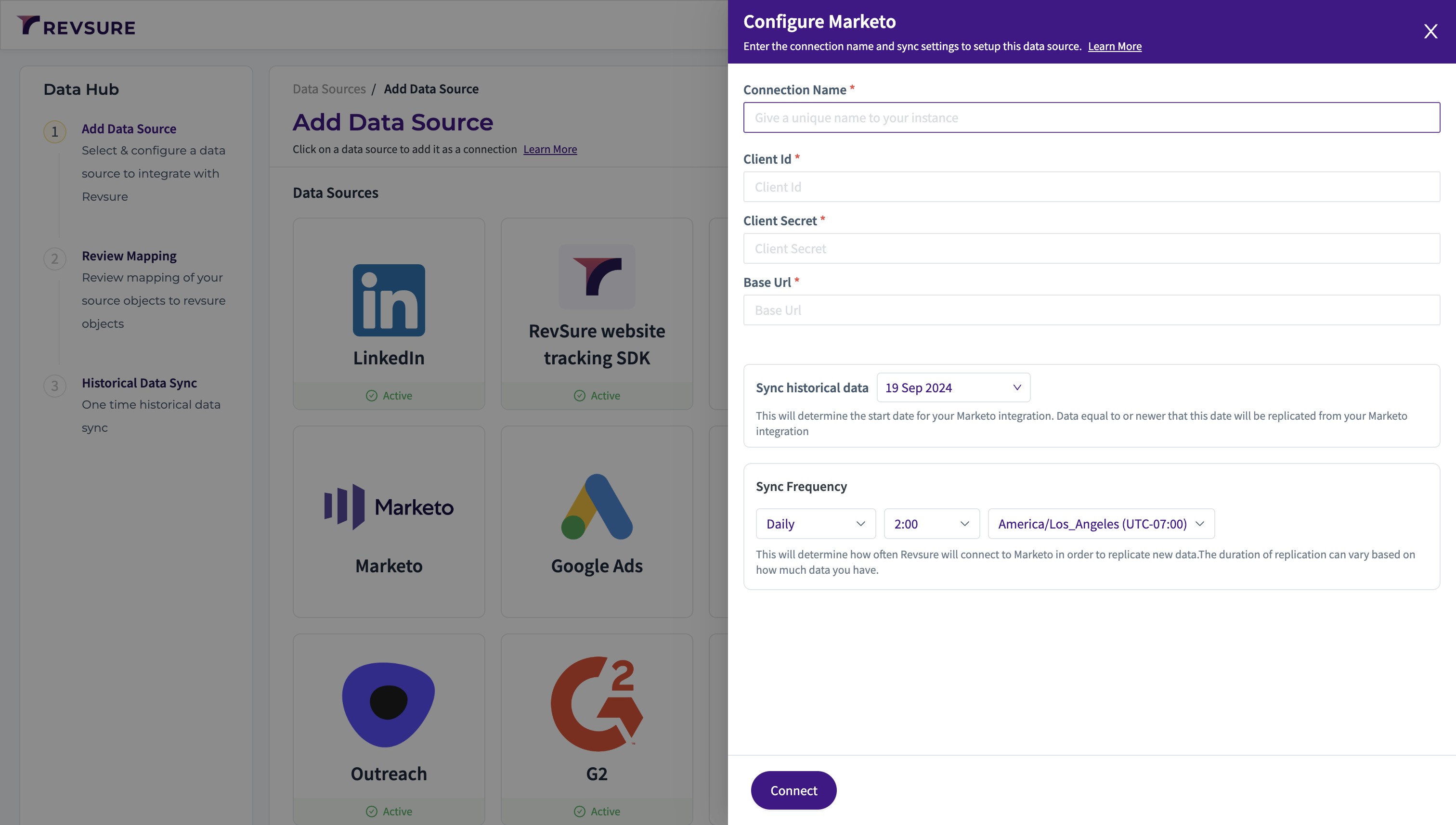
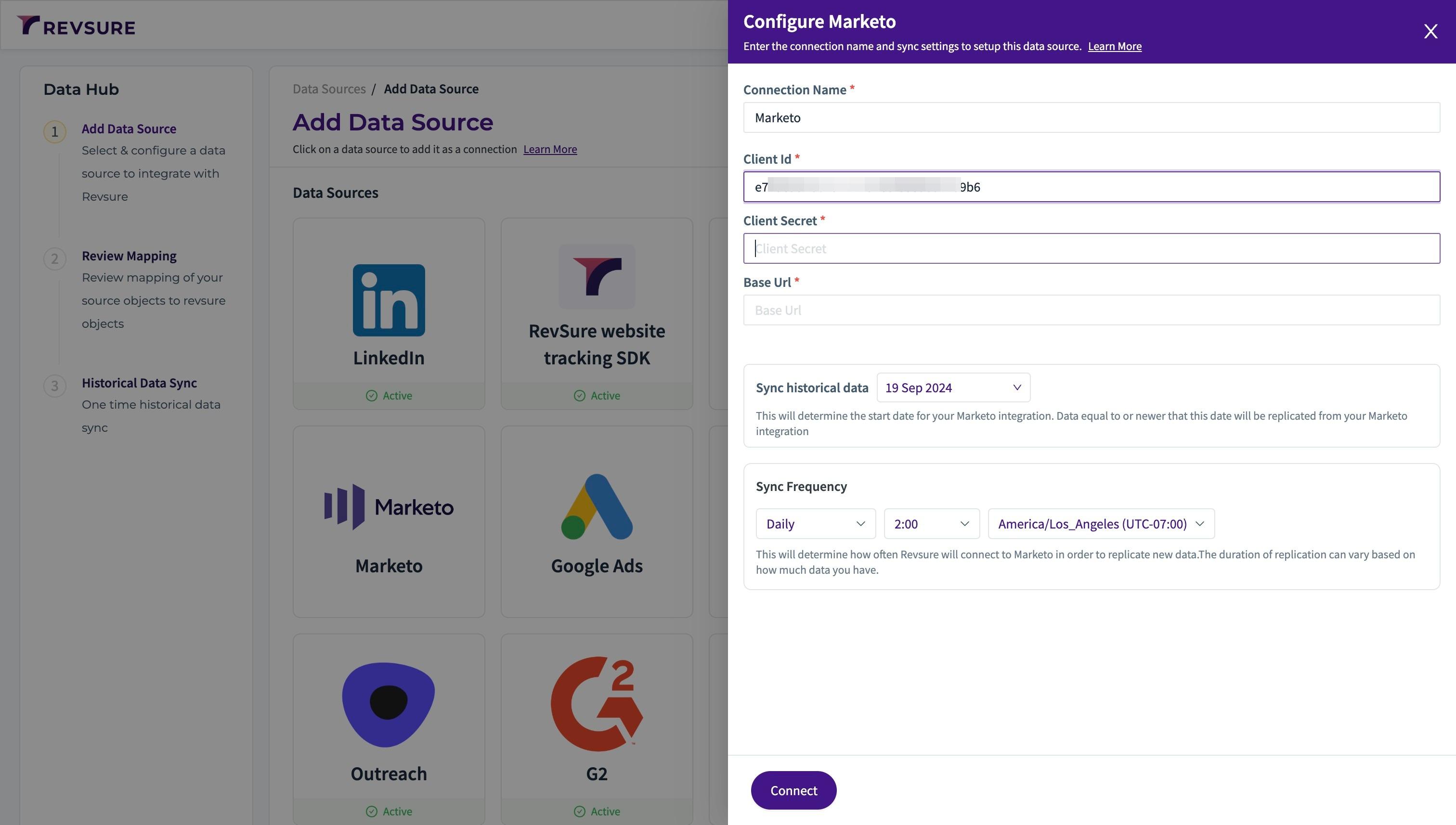
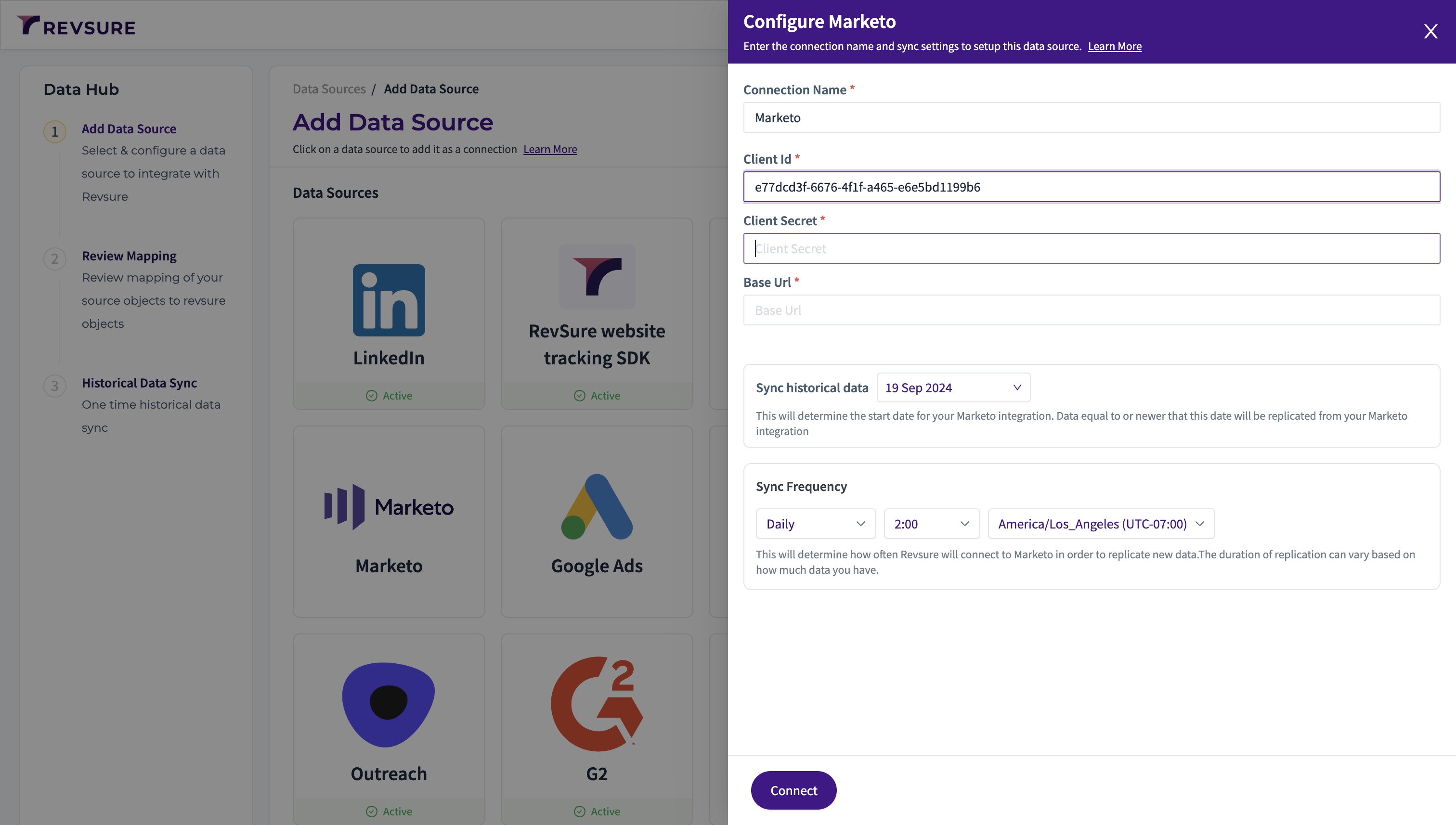
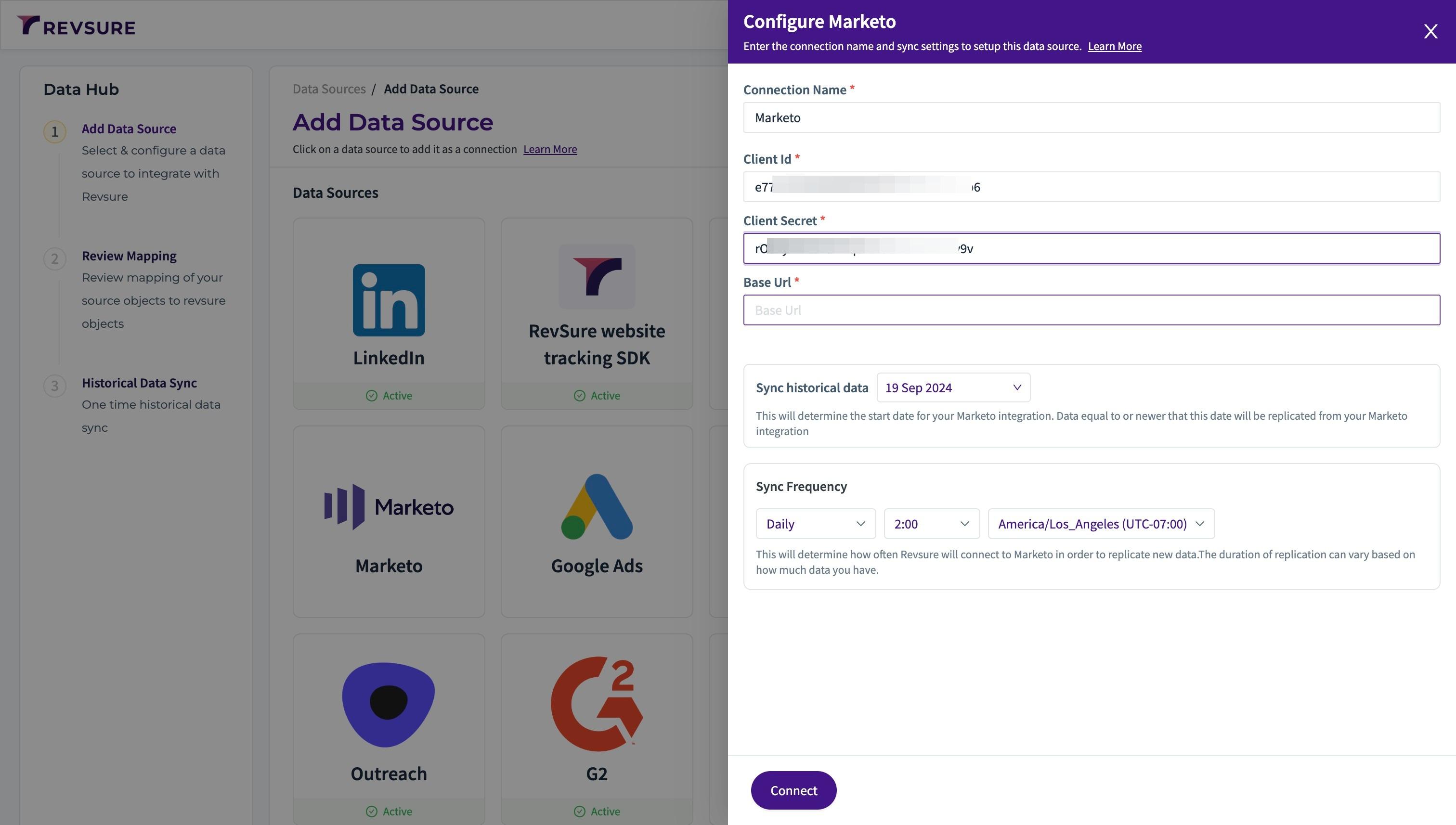
2. Select Marketo data source, and it will open a sidebar to configure the connection details
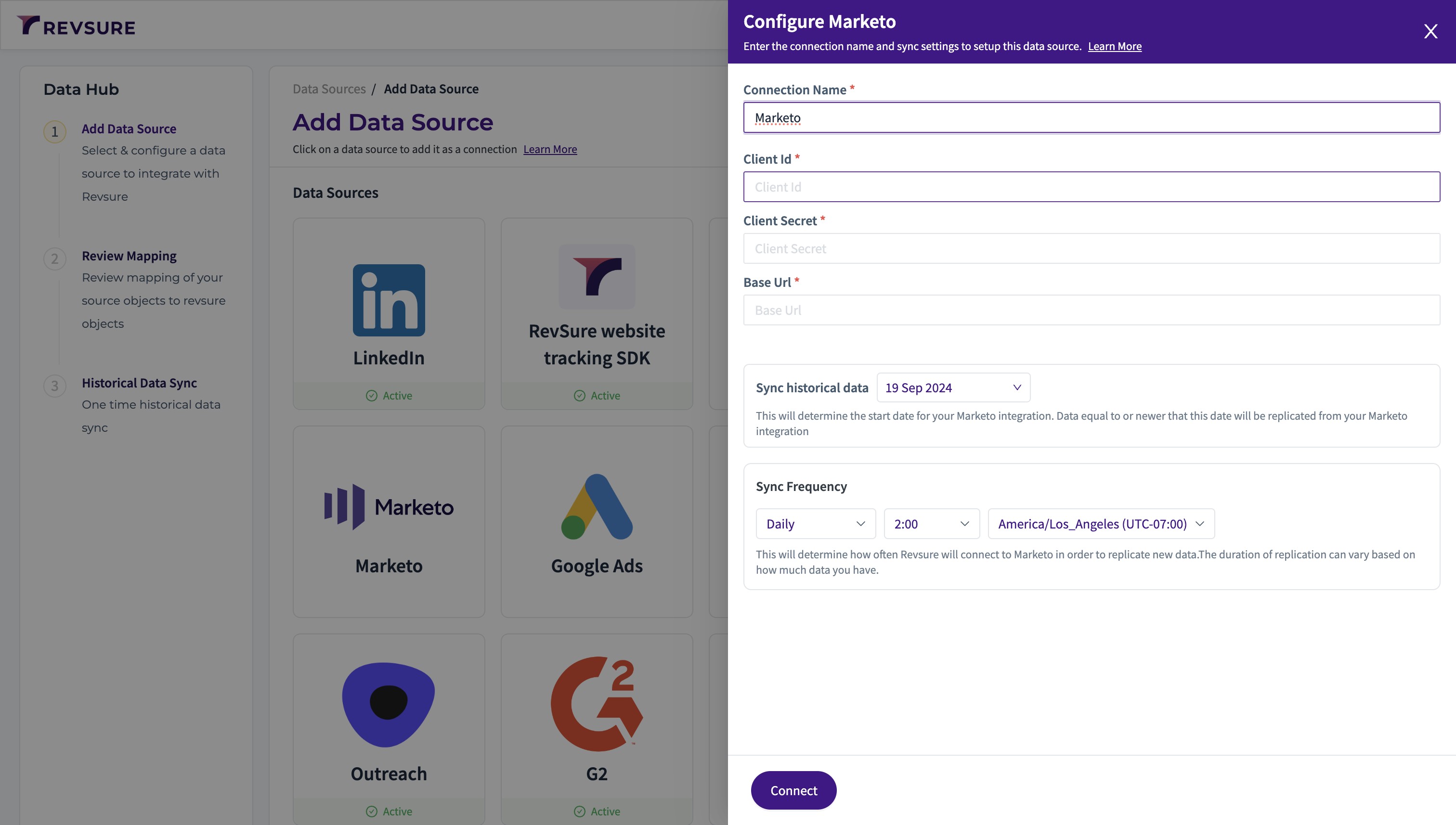
3. Enter a unique connection name to identify the connection
4. Click the "Client Id *" field
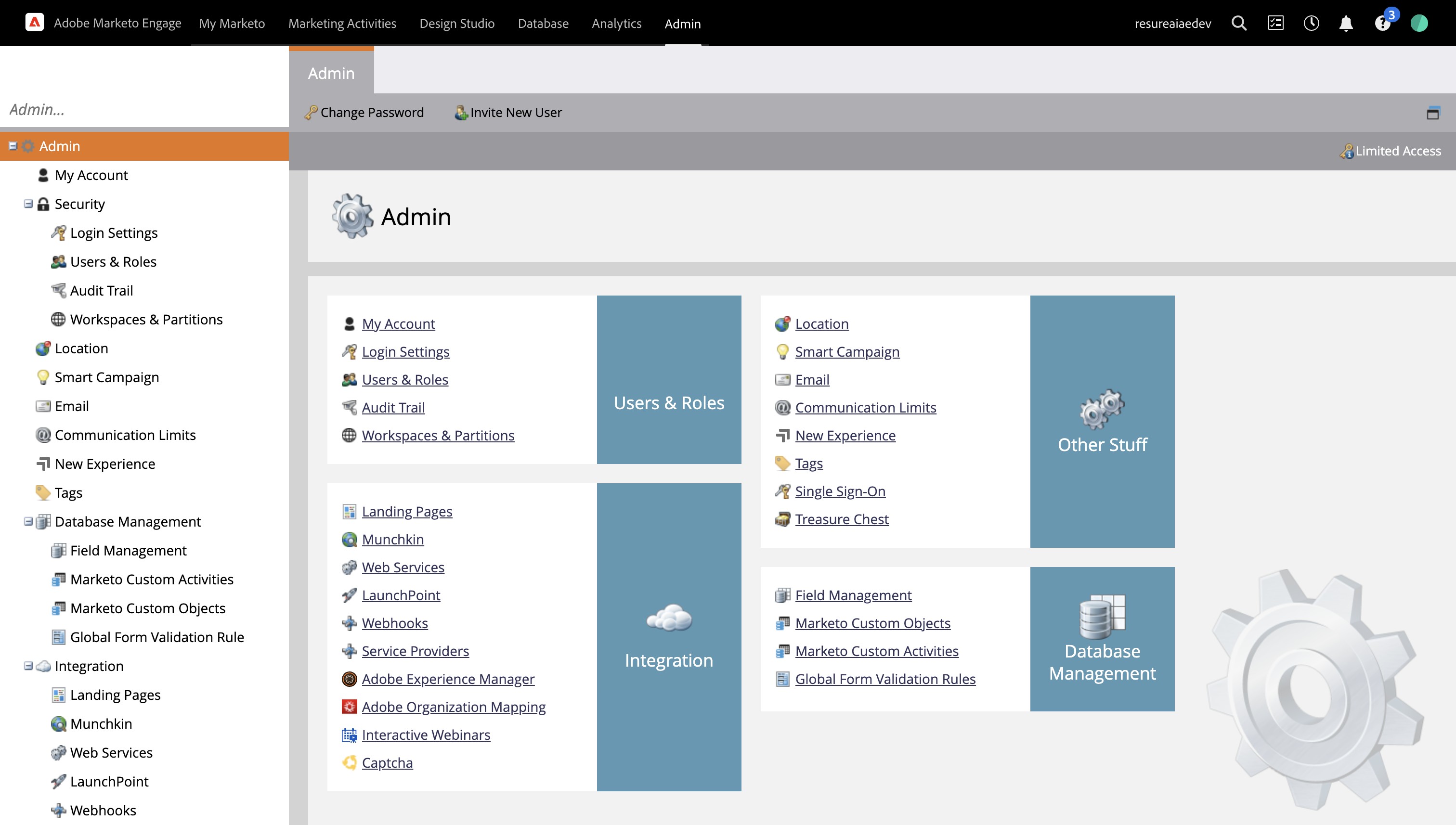
5. Navigate to your Marketo Instance
We will be creating the following :
Role
User
Web Service
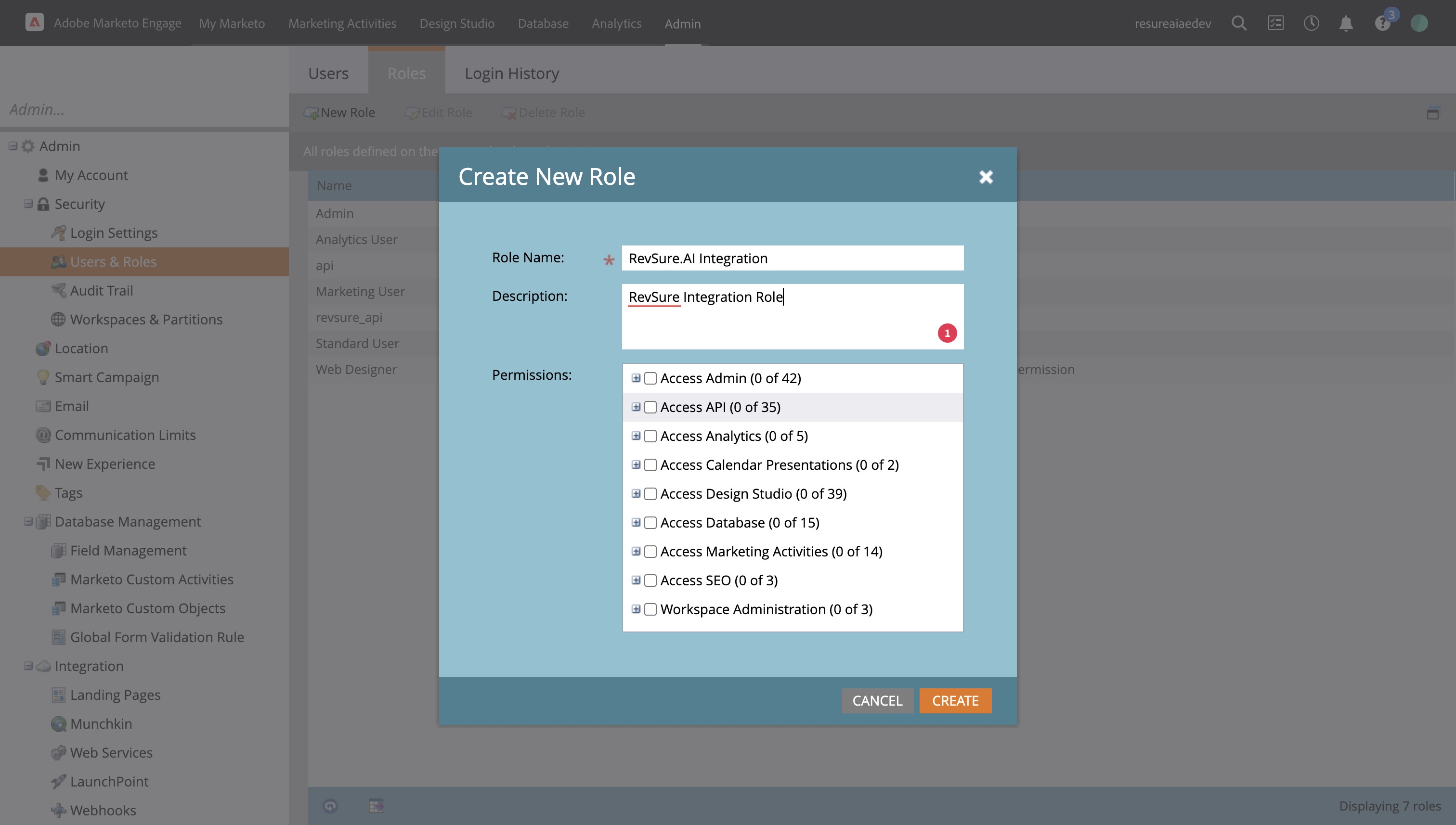
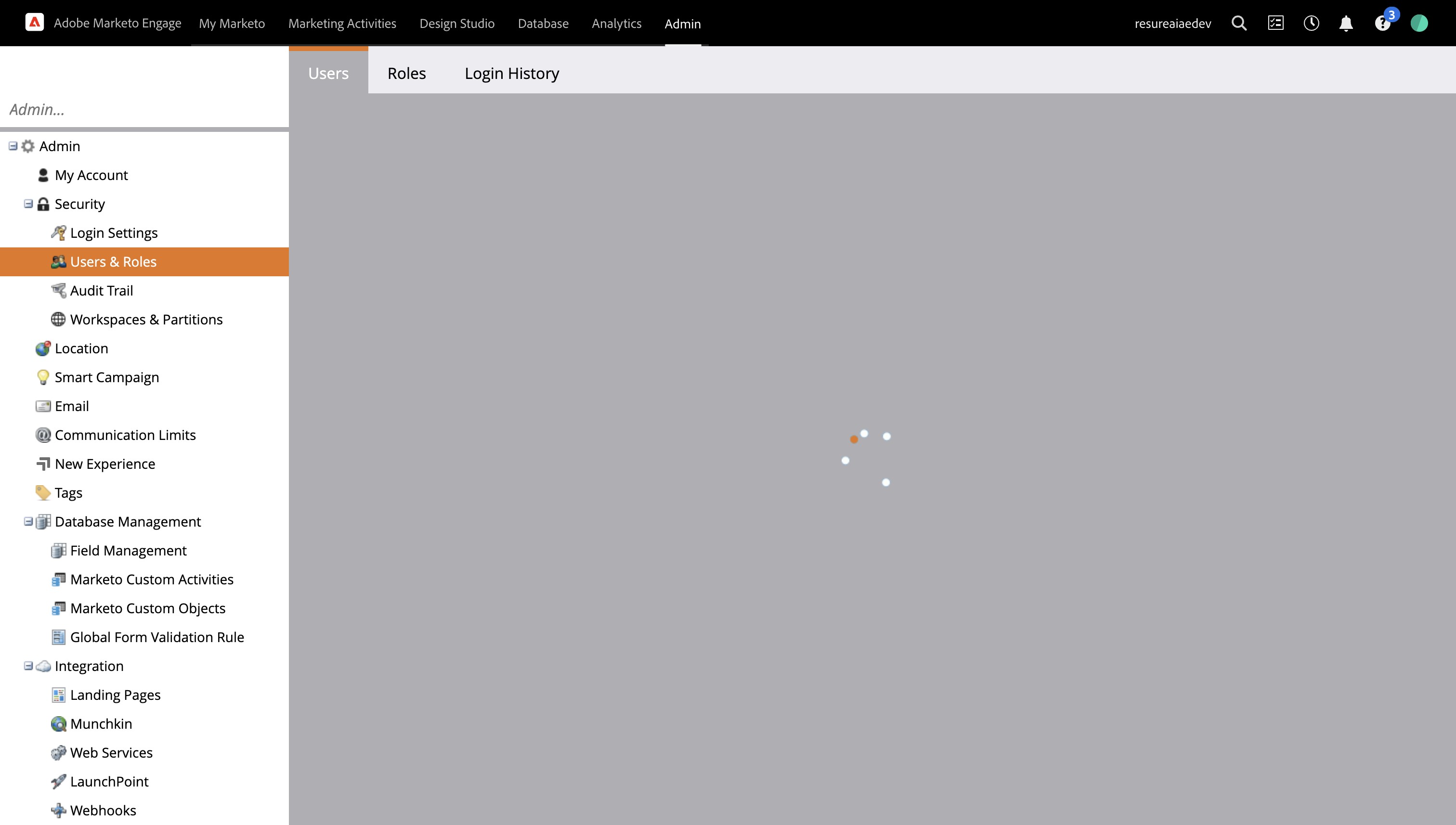
6. In the Admin Page, Click "Users & Roles"
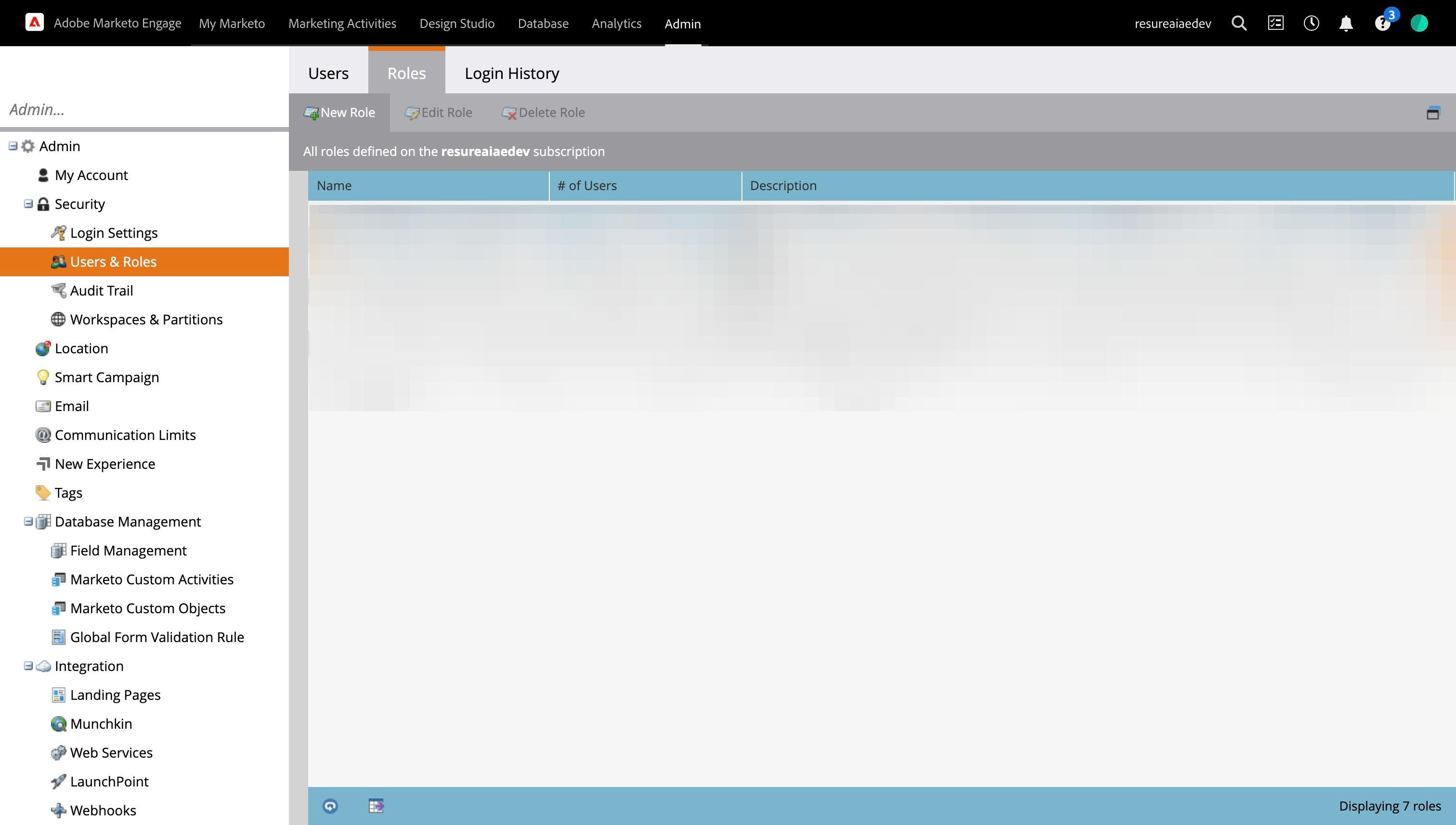
7. Click "Roles"
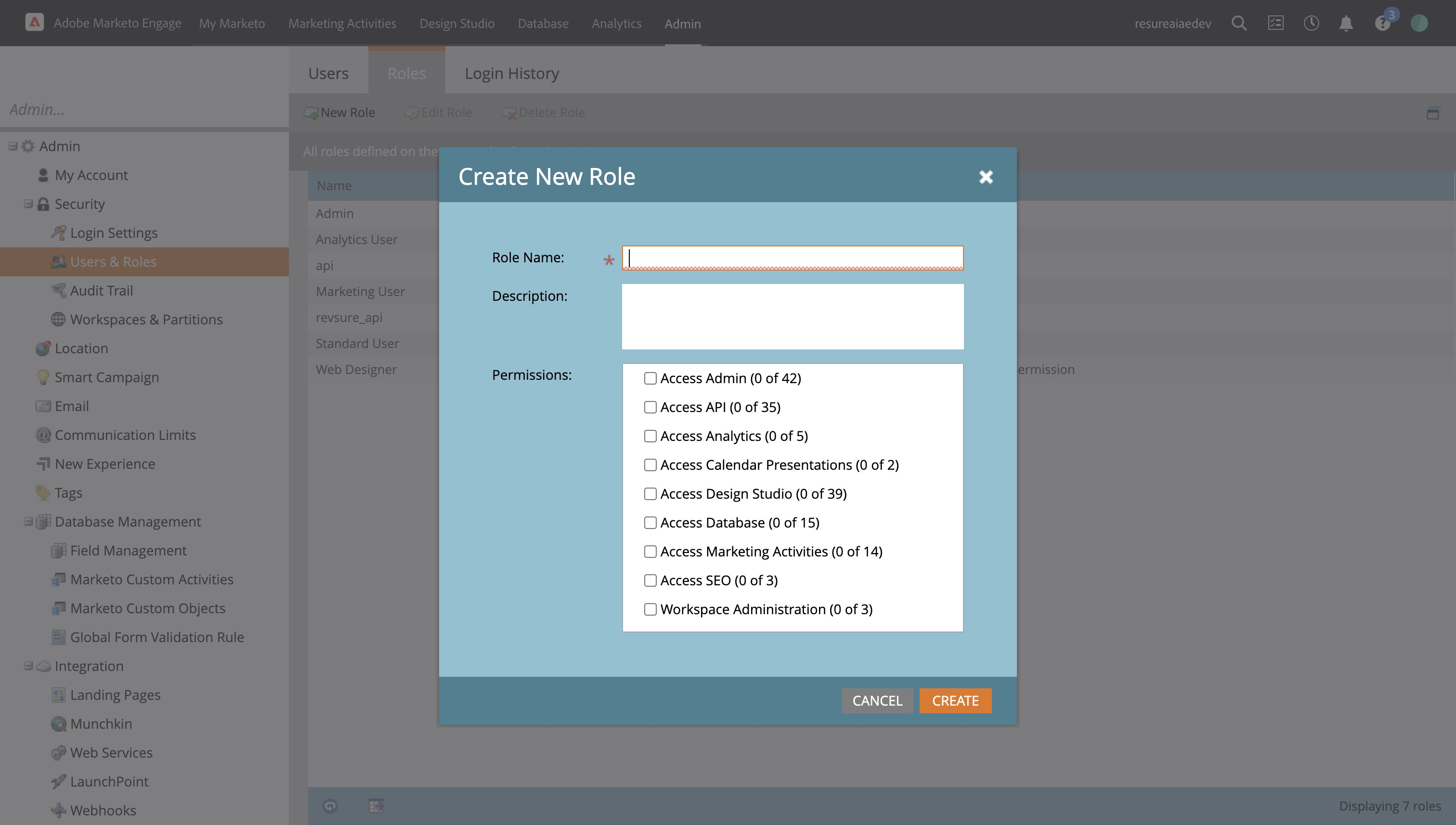
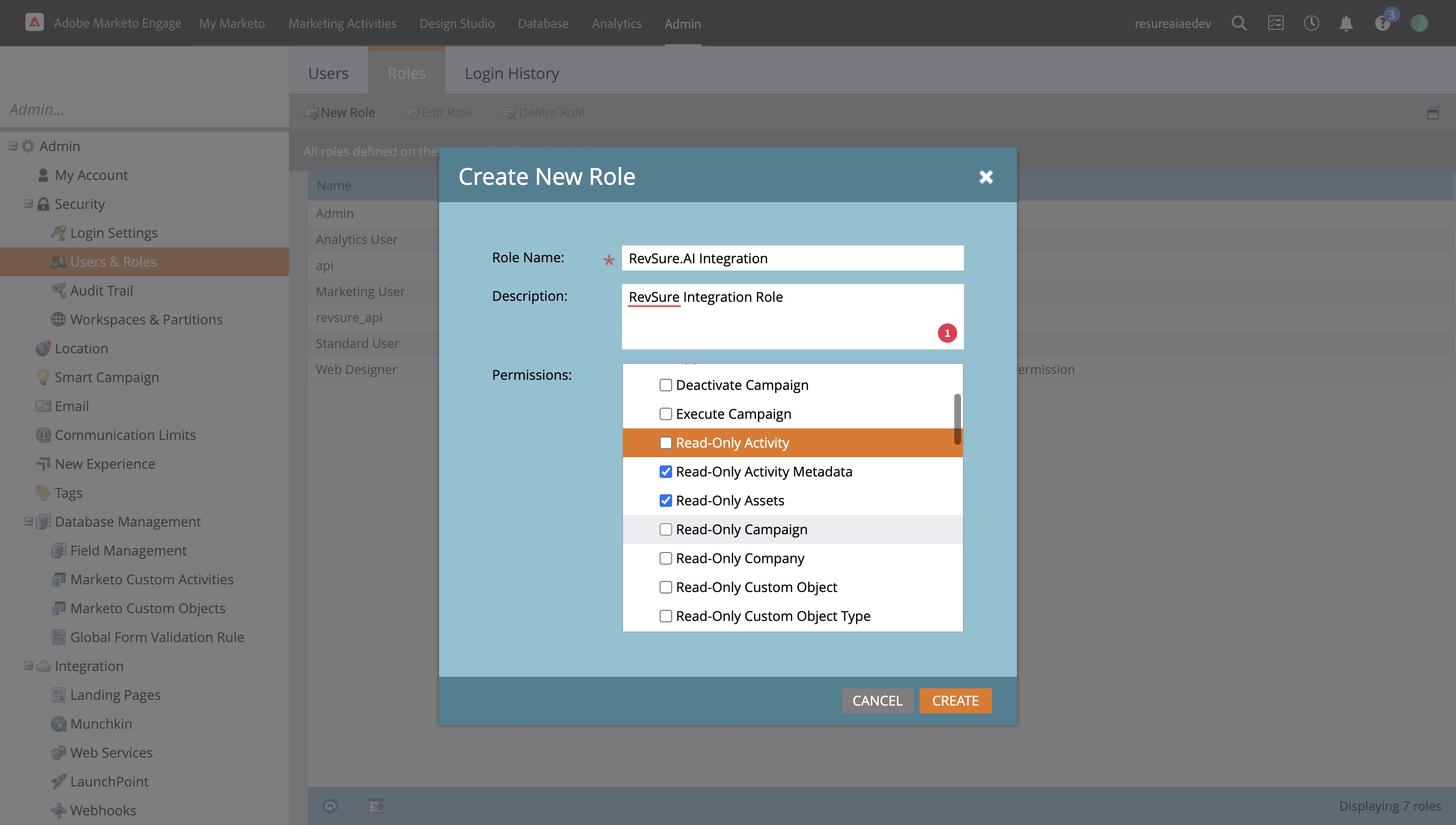
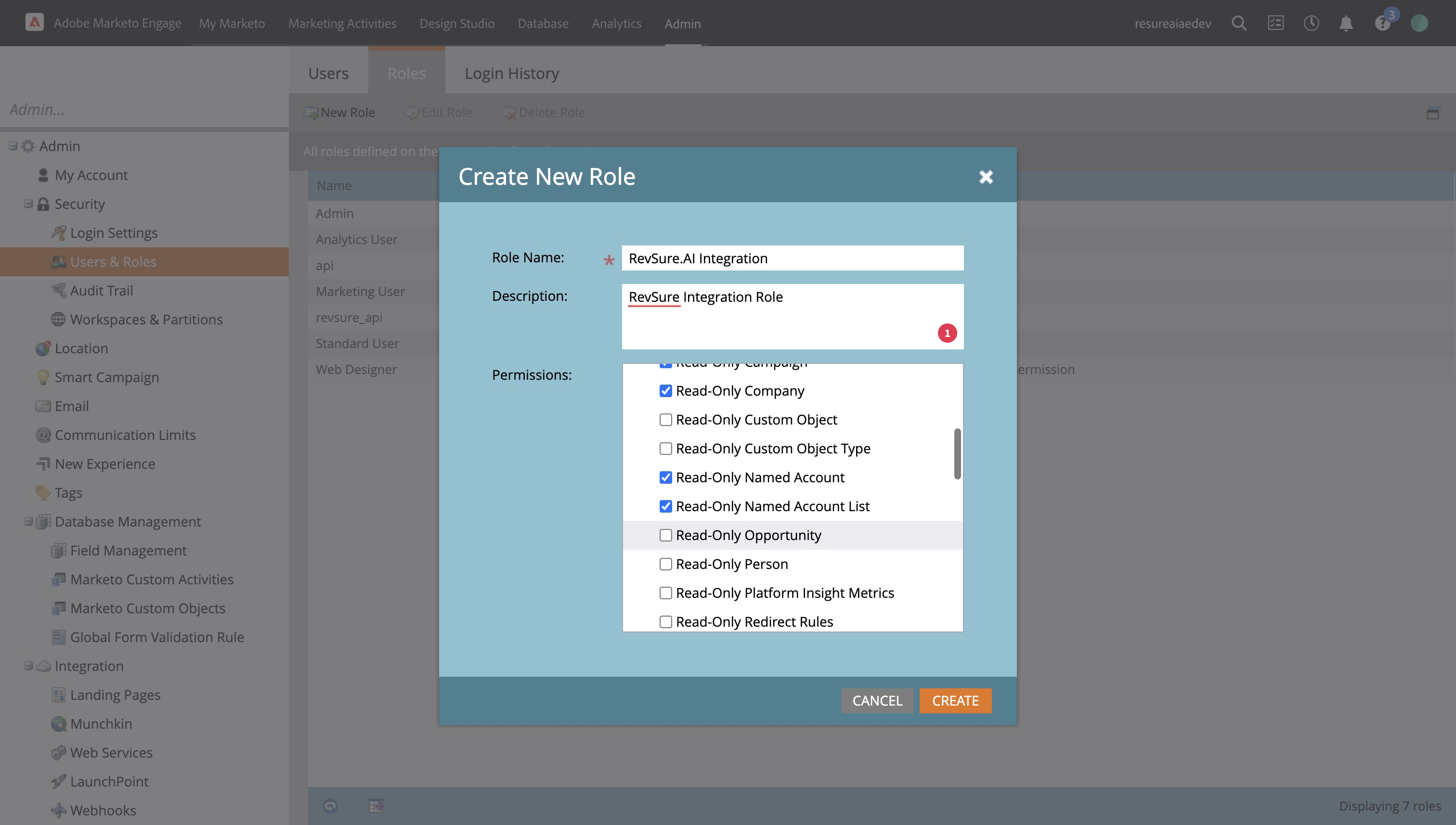
8. Click "New Role"
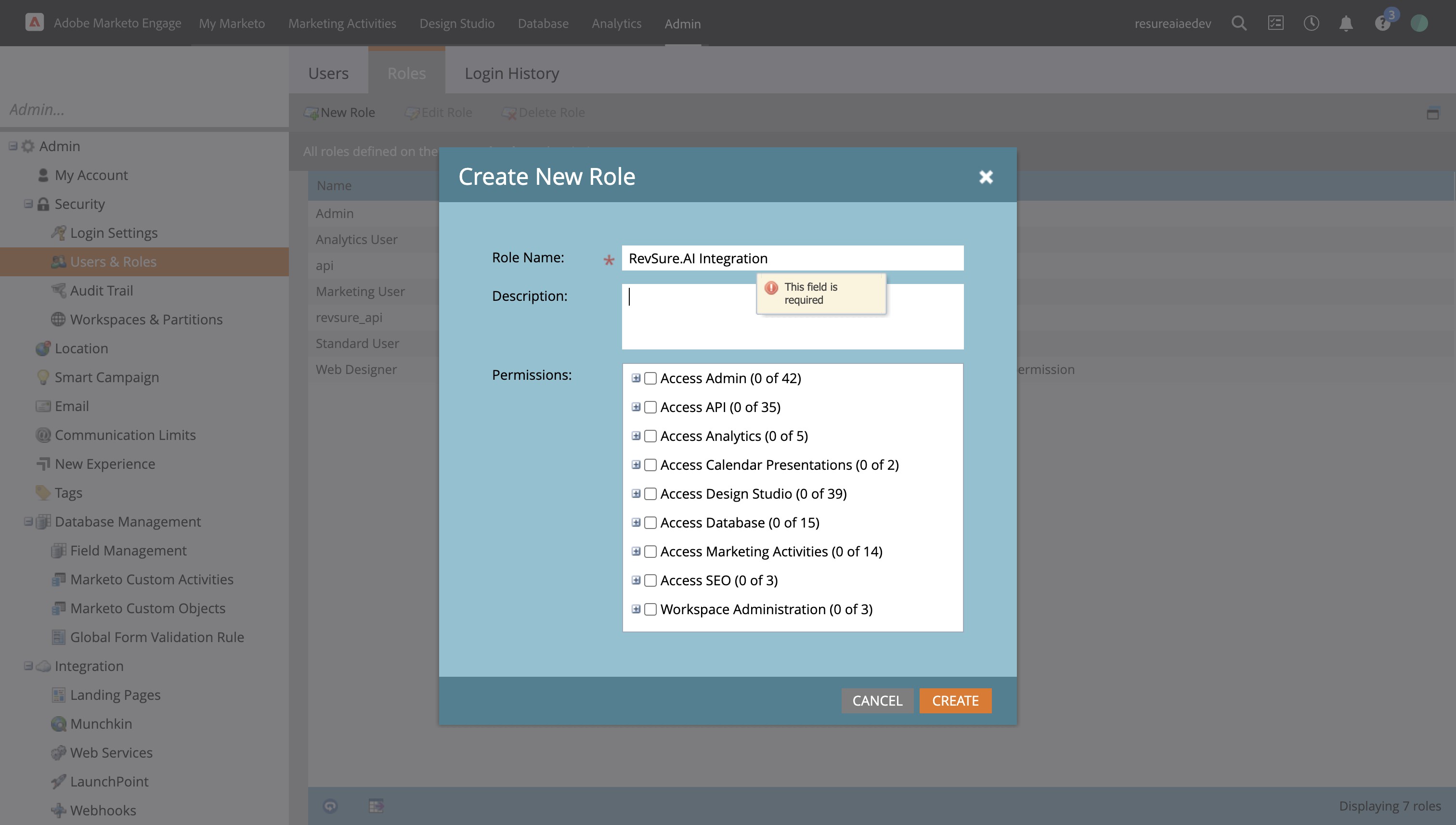
9. Click the "Role Name:" field.
10. Click the "Description:" field.
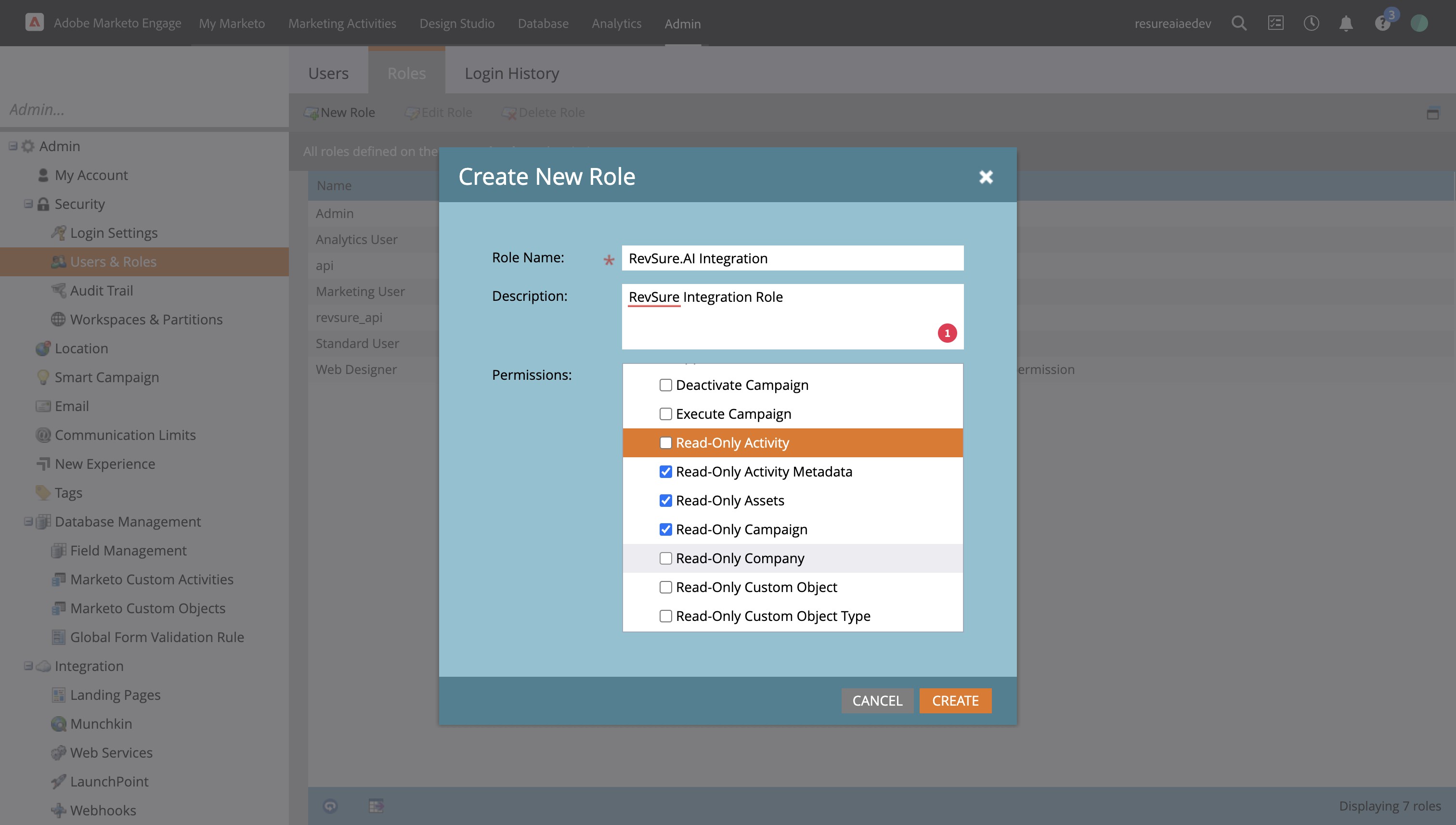
11. Expand Access API
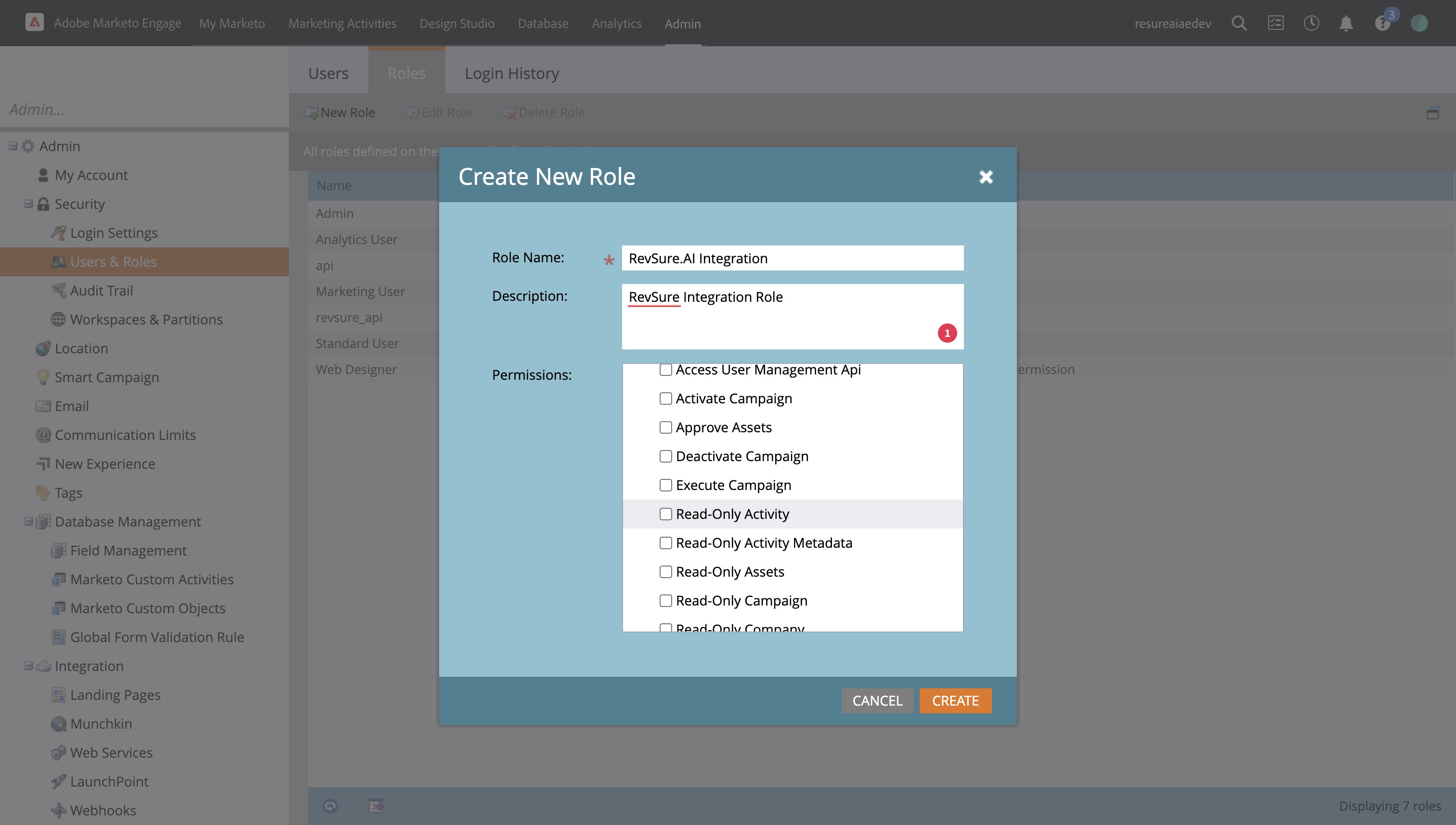
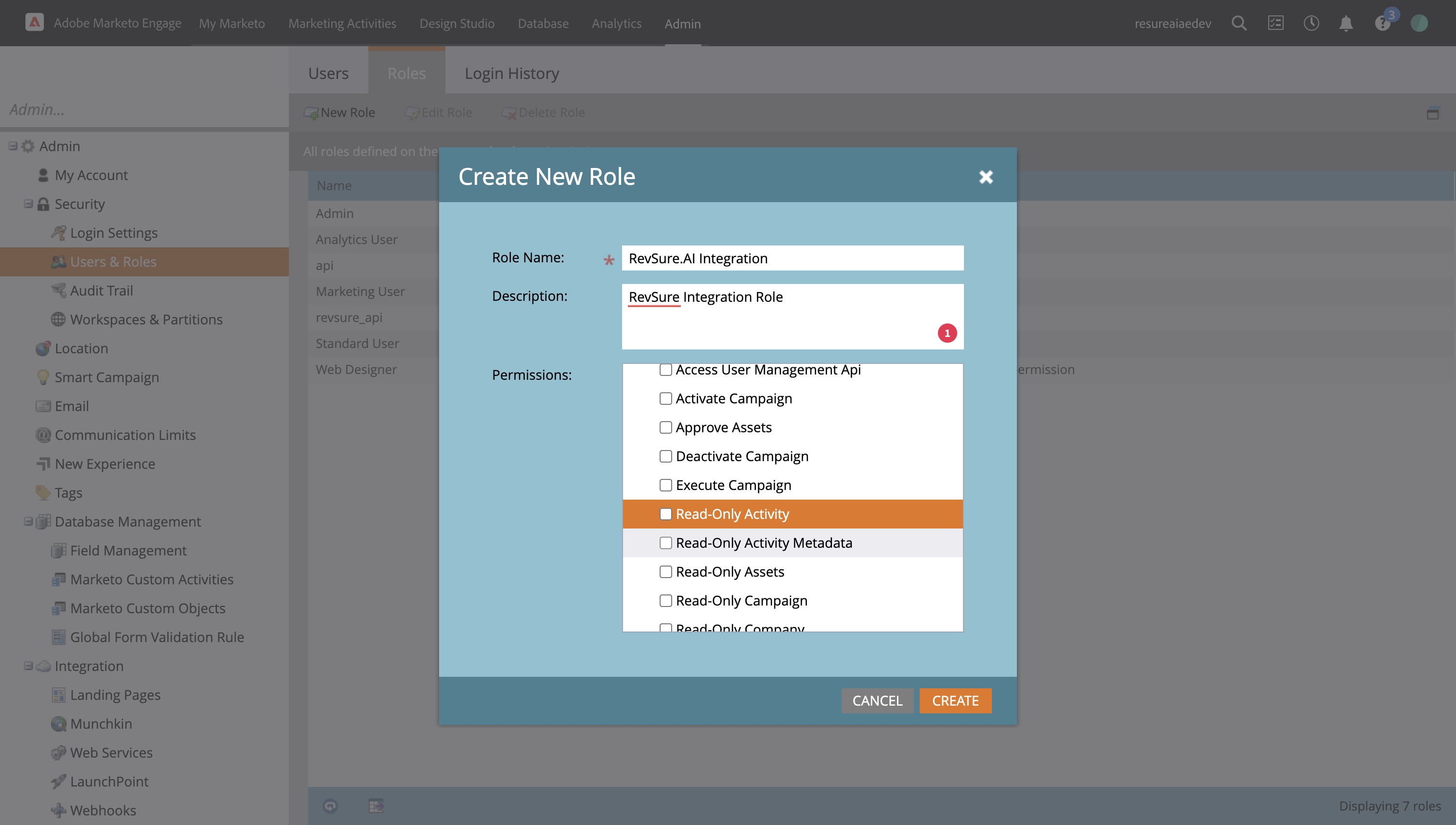
12. Select Read-Only Activity
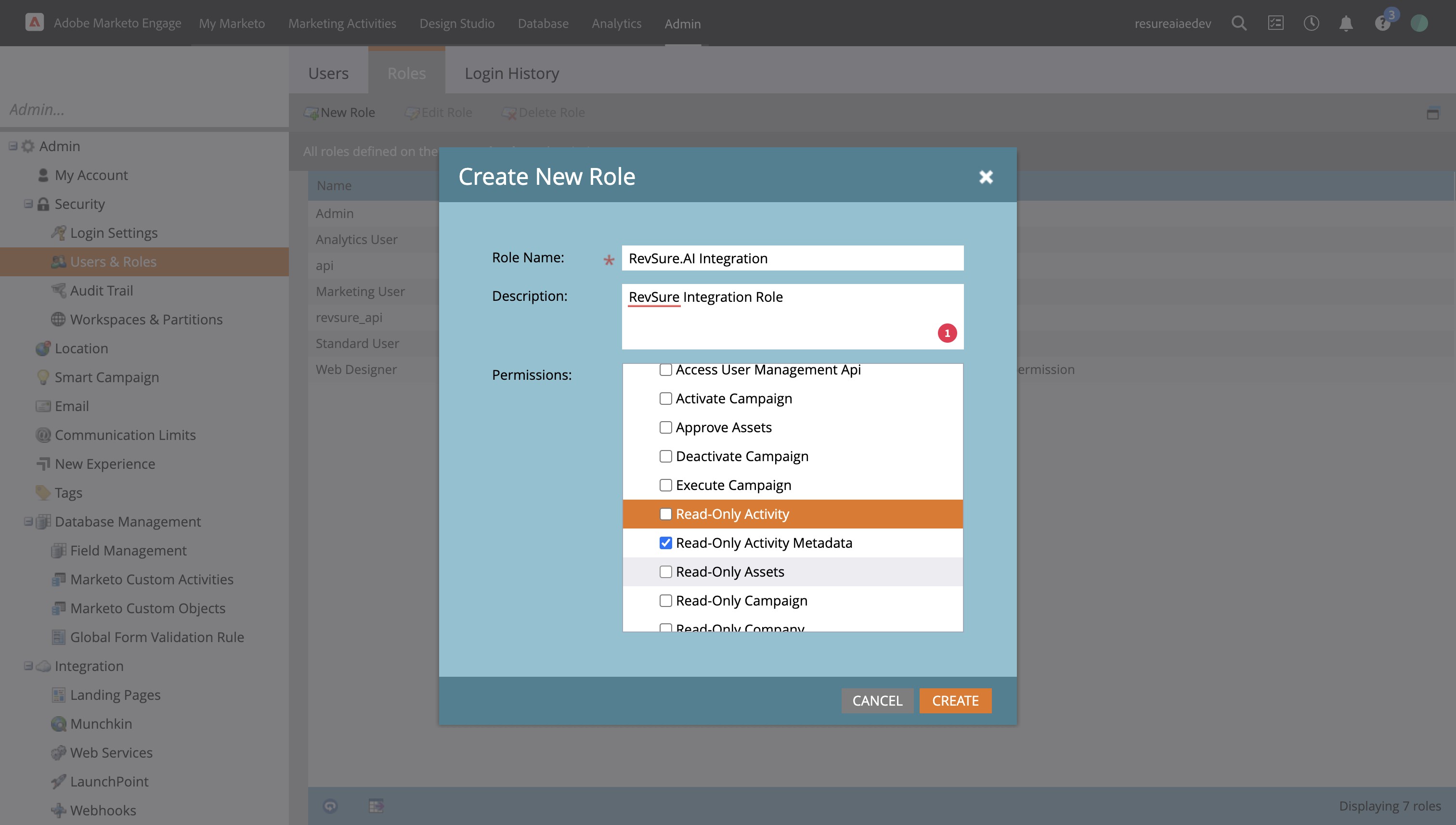
13. Select Read-Only Activity Metadata
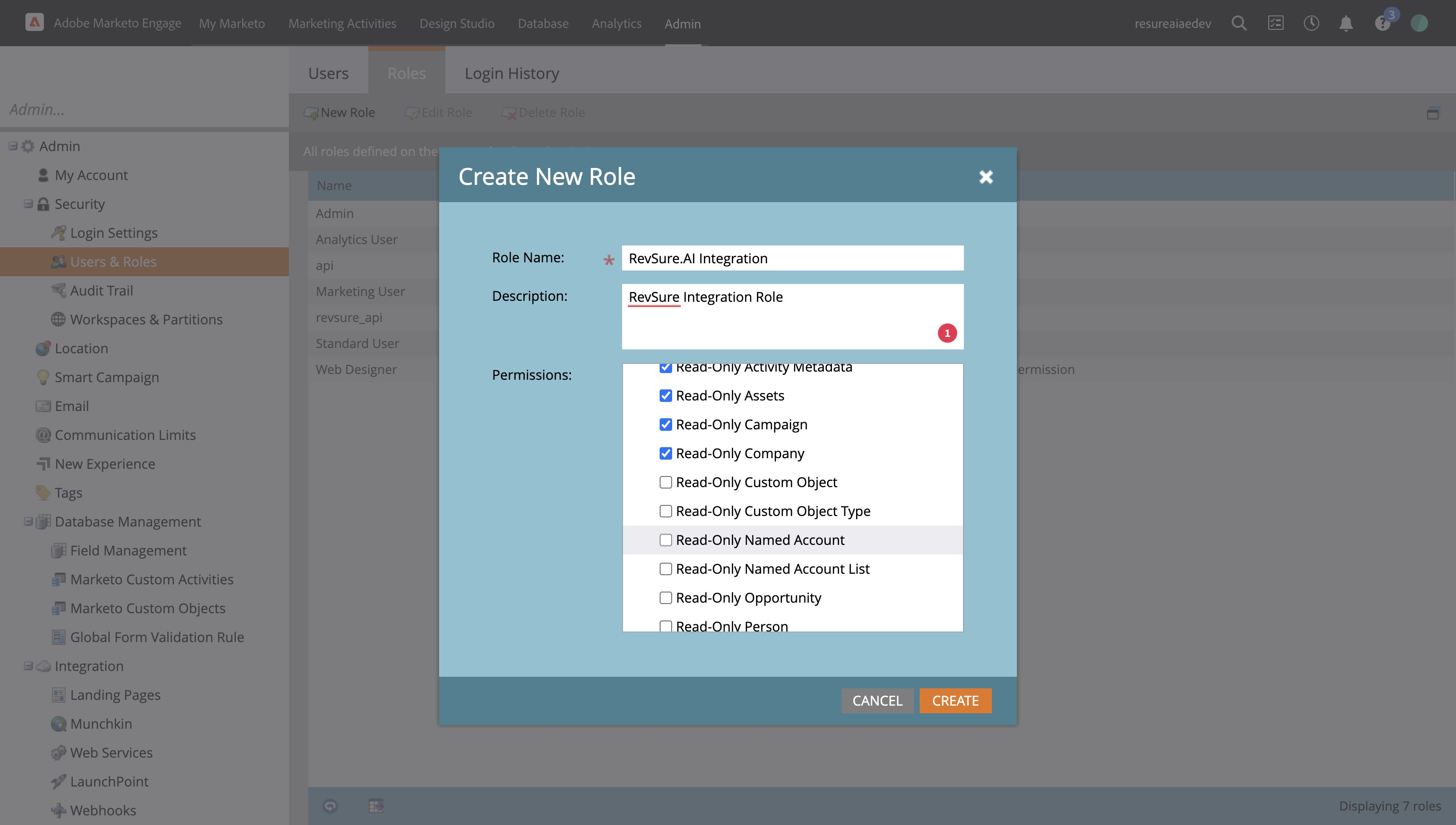
14. Select Read-Only Assets
15. Select Read-Only Campaign
16. Select Read-Only Company
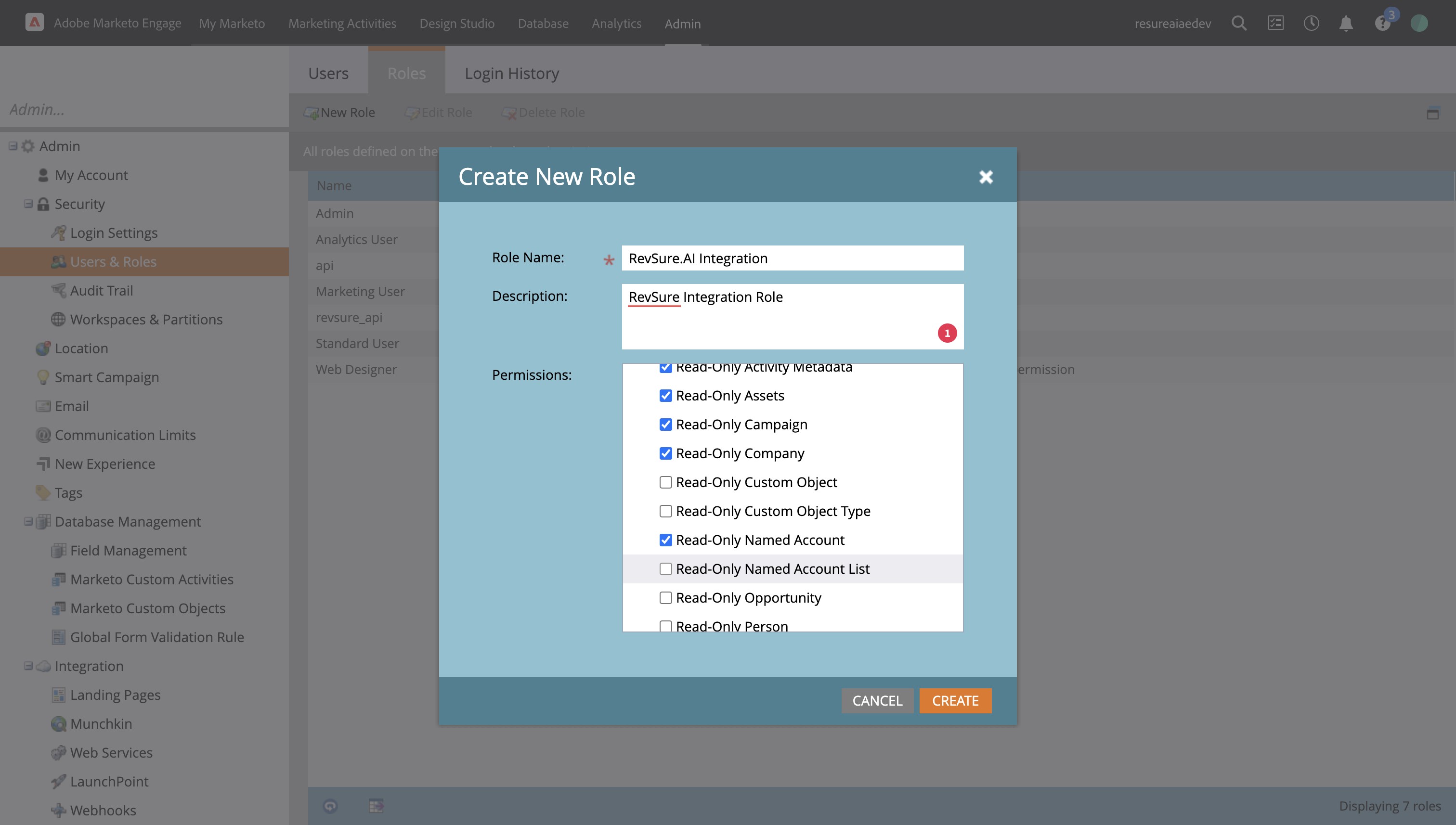
17. Select Read-Only Named Account
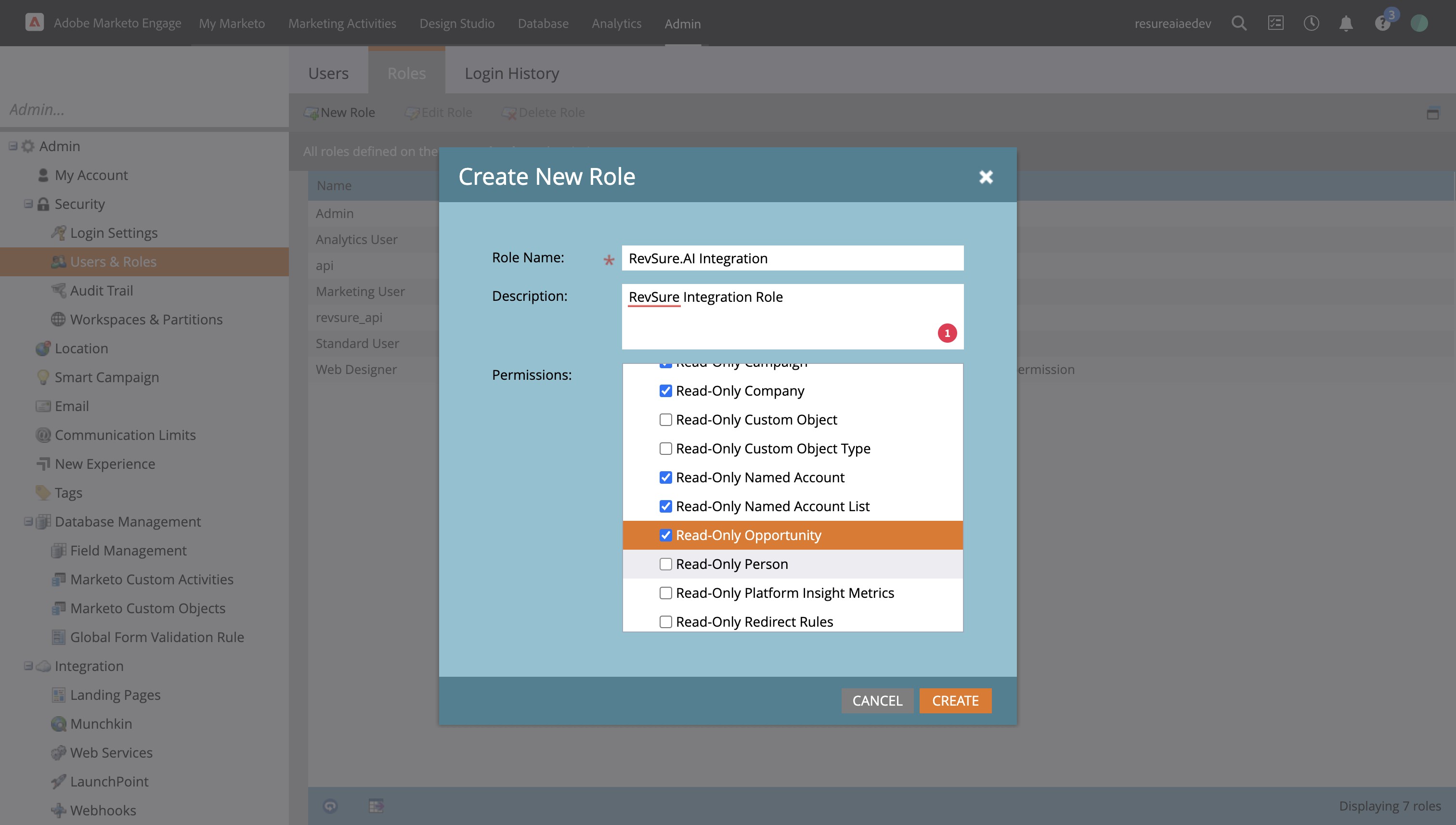
18. Select Read-Only Named Account List
19. Select Read-Only Opportunity
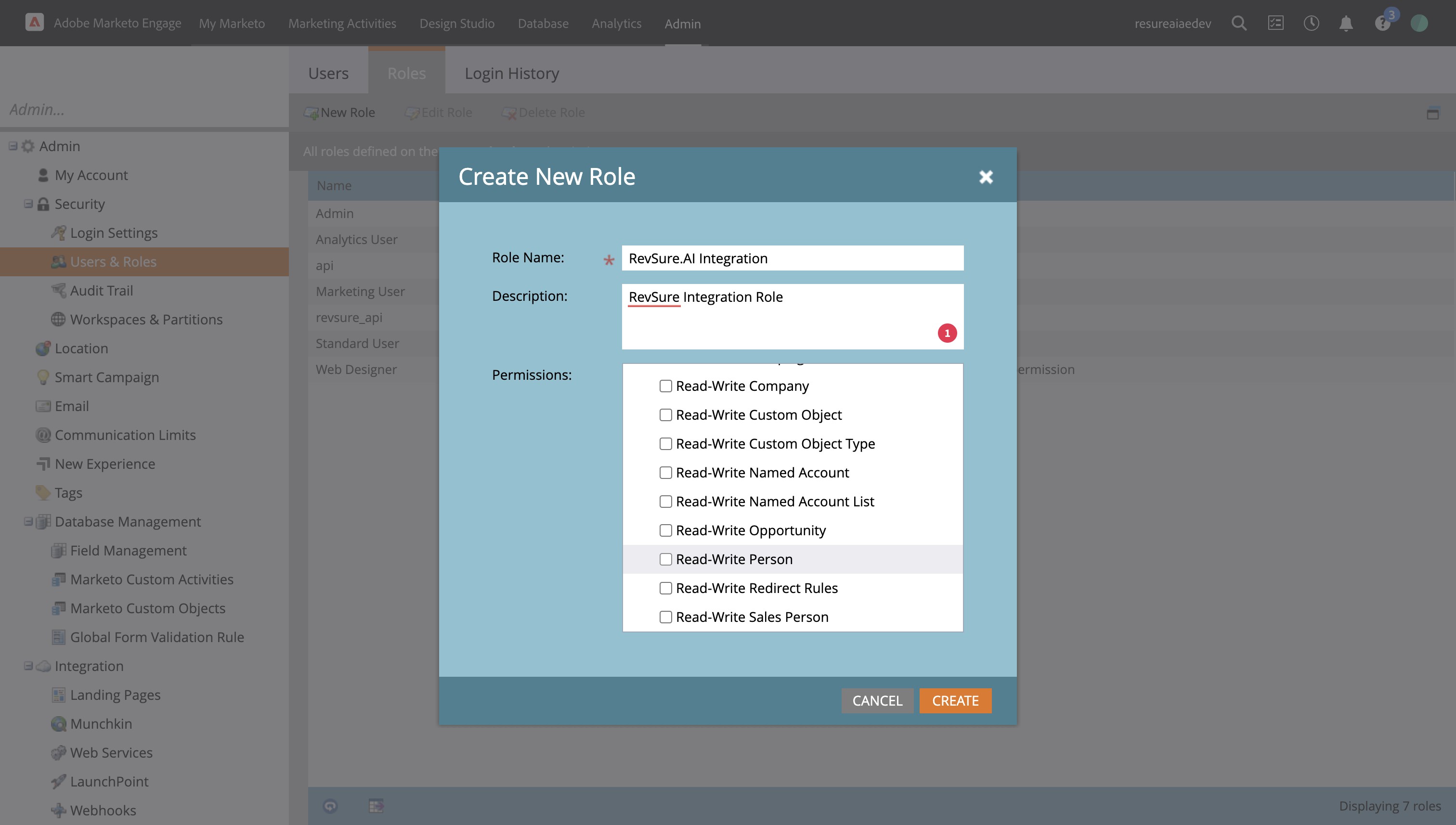
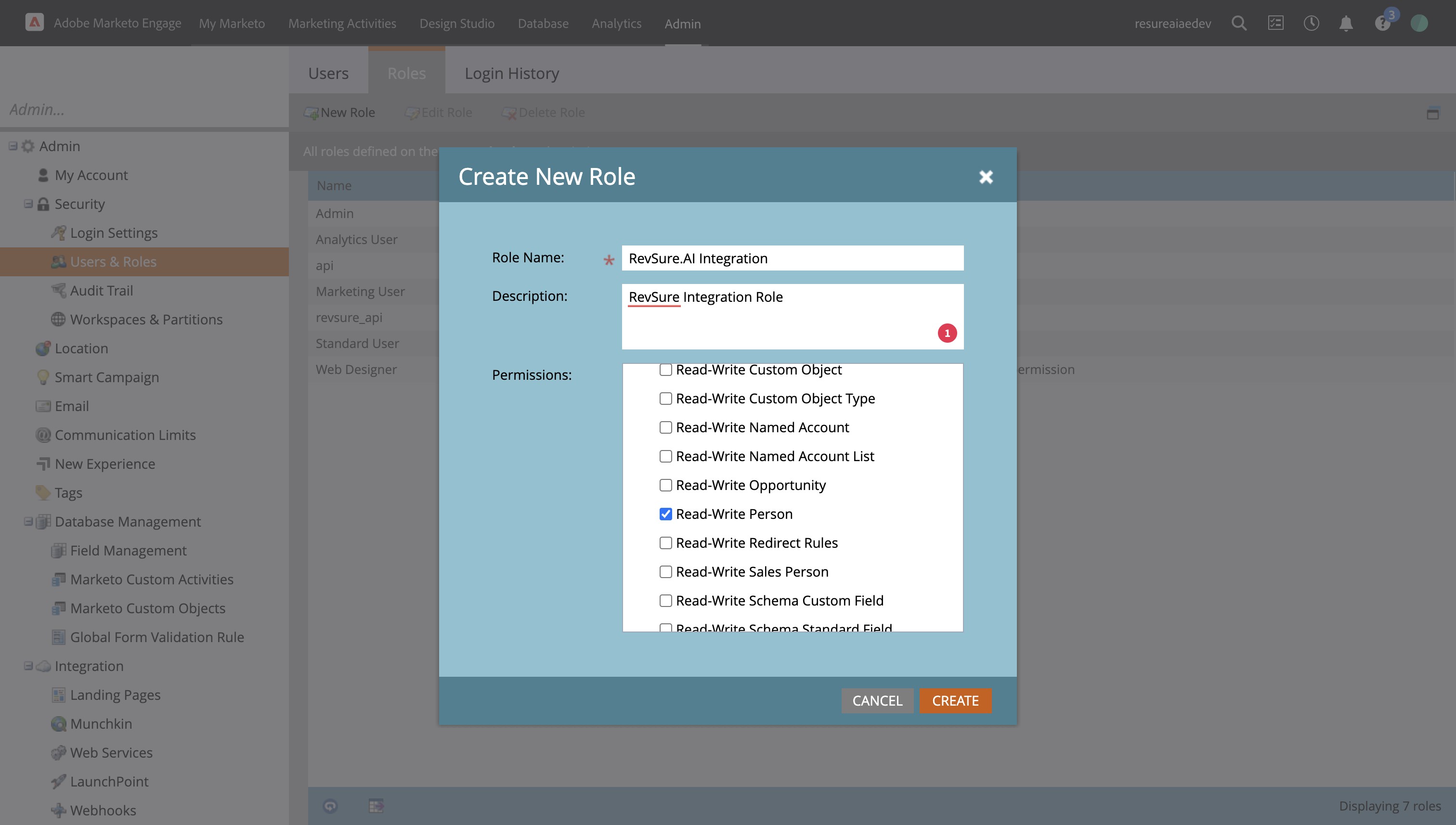
20. Select Read-Only Person
21. Select Read-Write Person (This is needed for write back)
22. Click "CREATE"
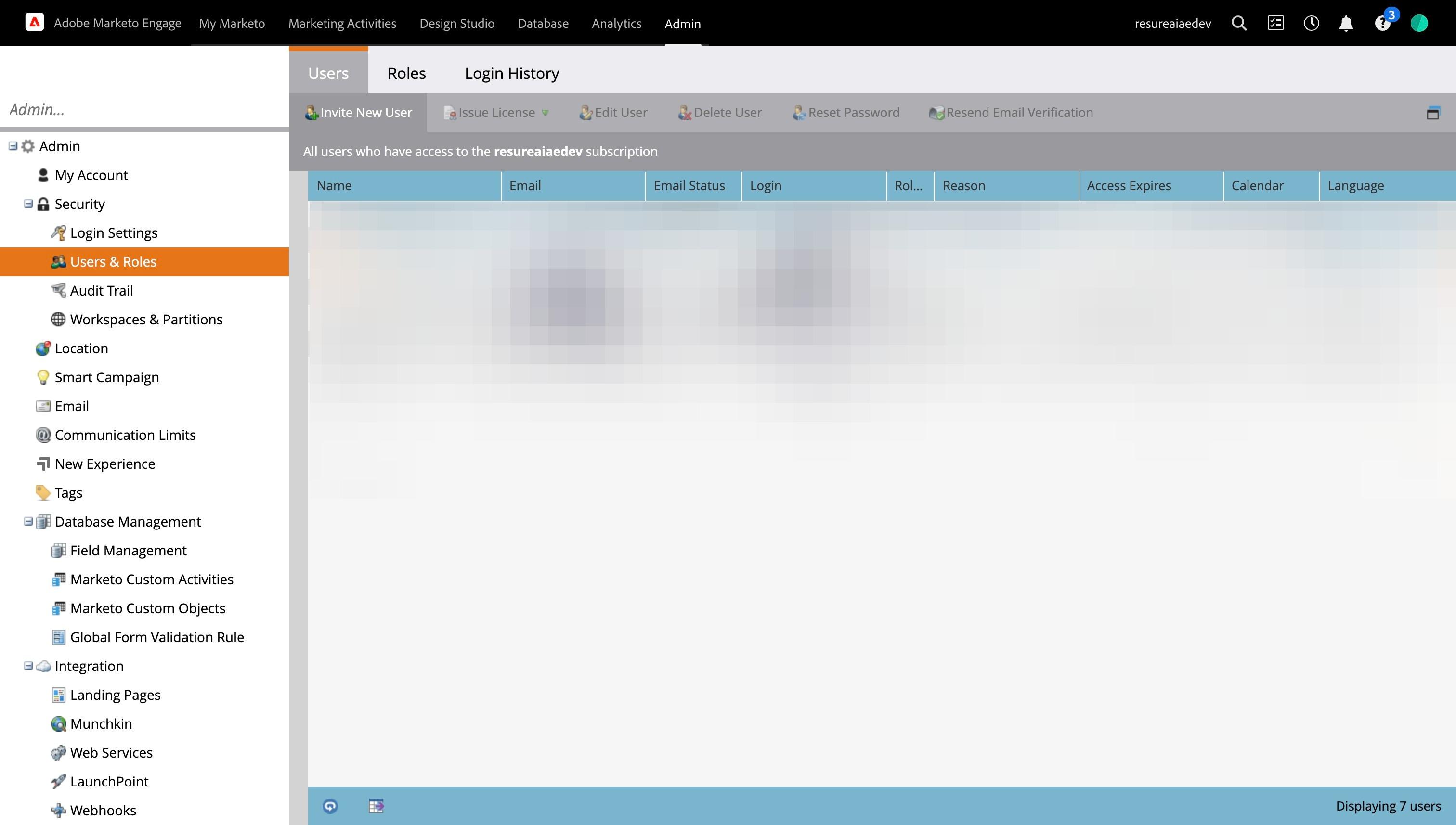
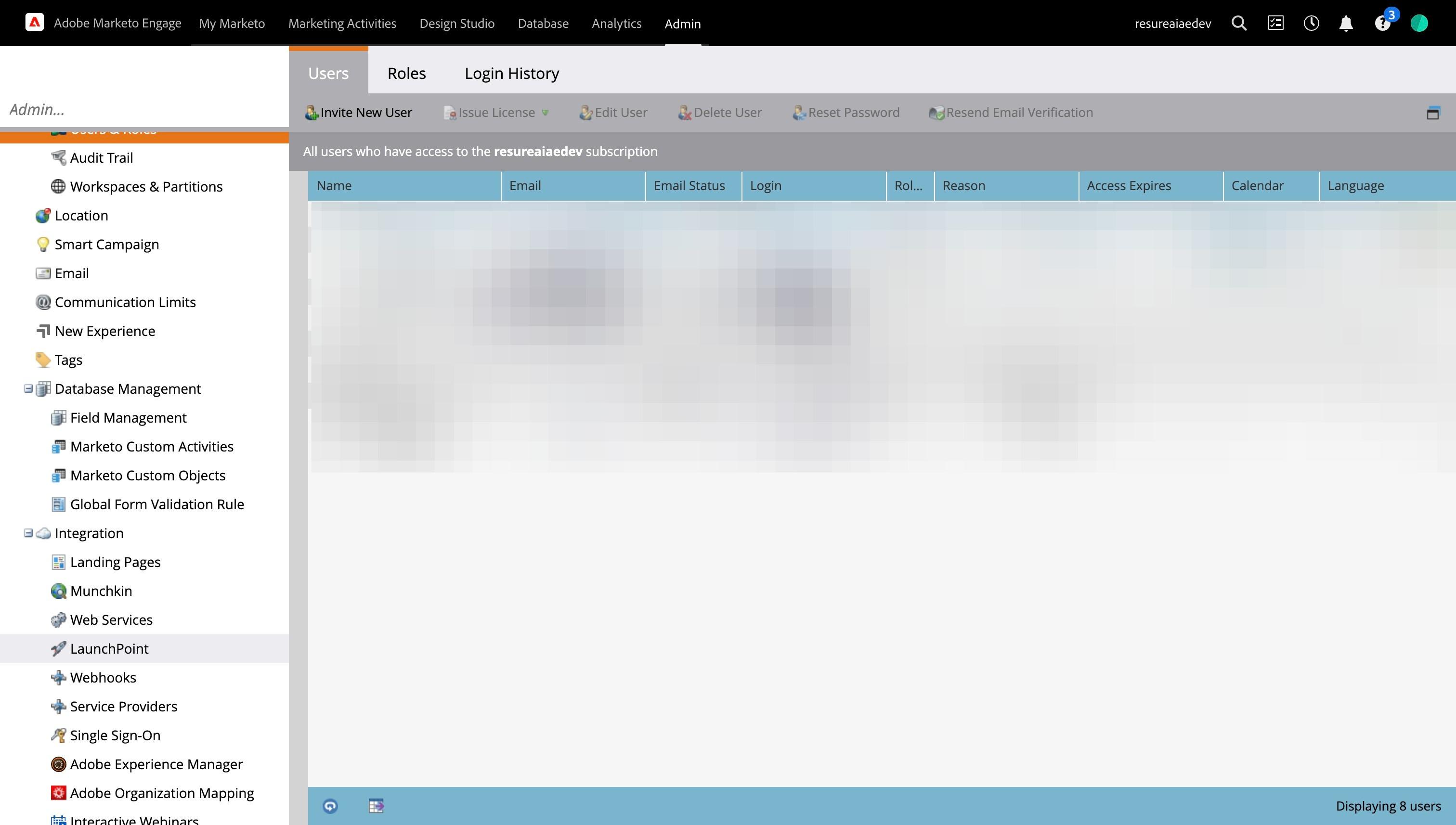
23. Click "Users"
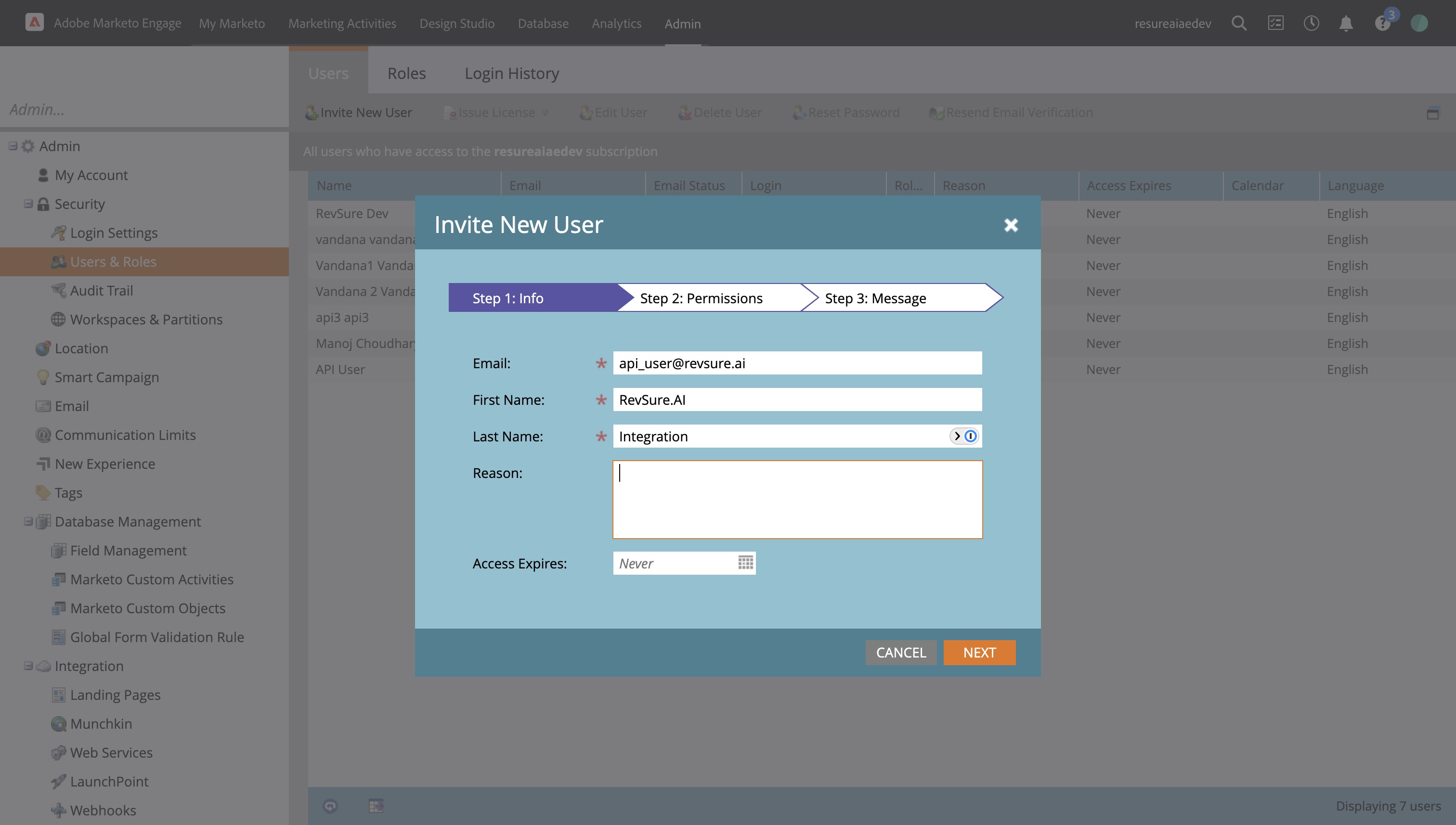
24. Click "Invite New User"
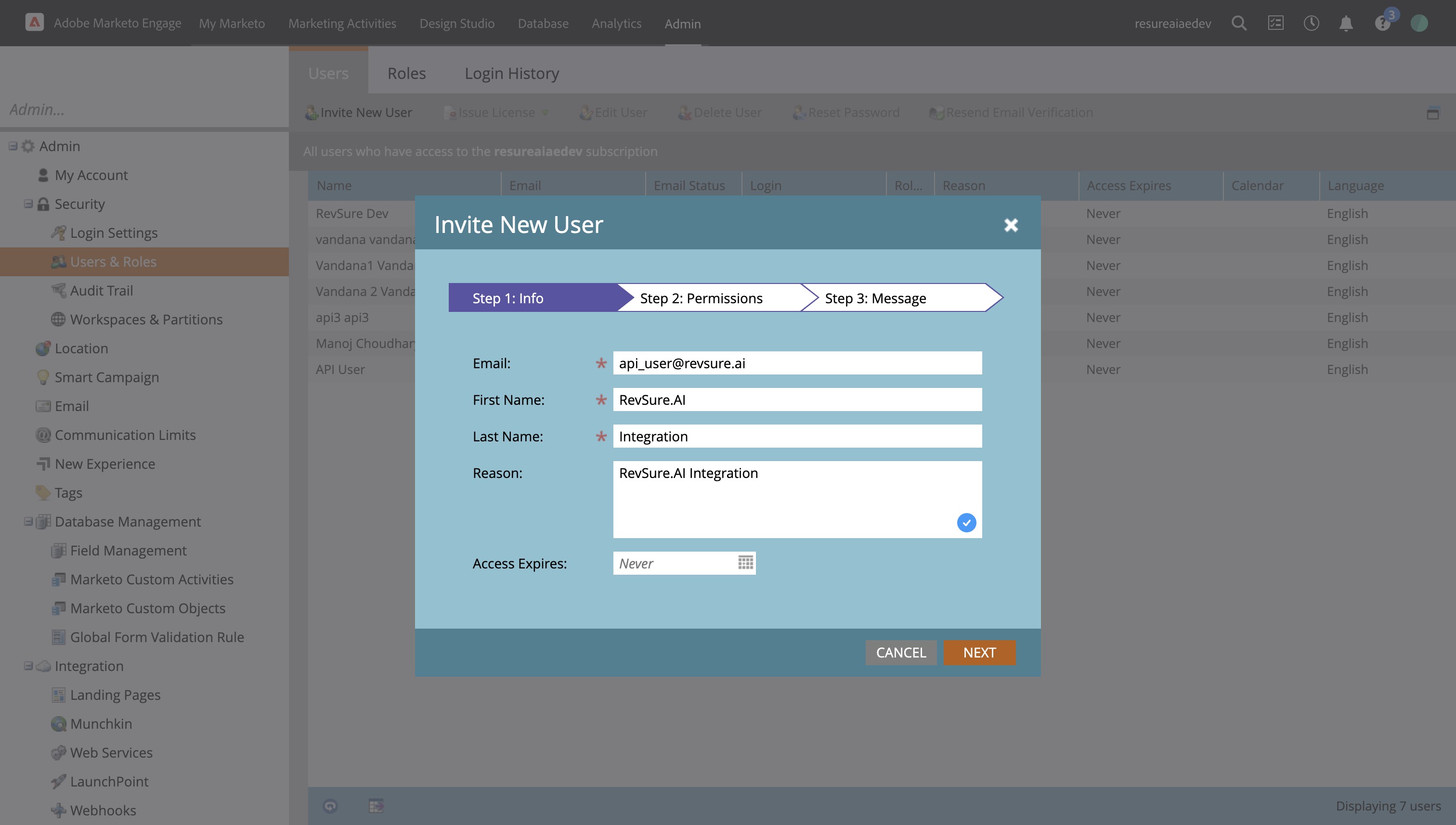
25. Please add the Email, First Name, Last Name and Reason
26. Click "NEXT"
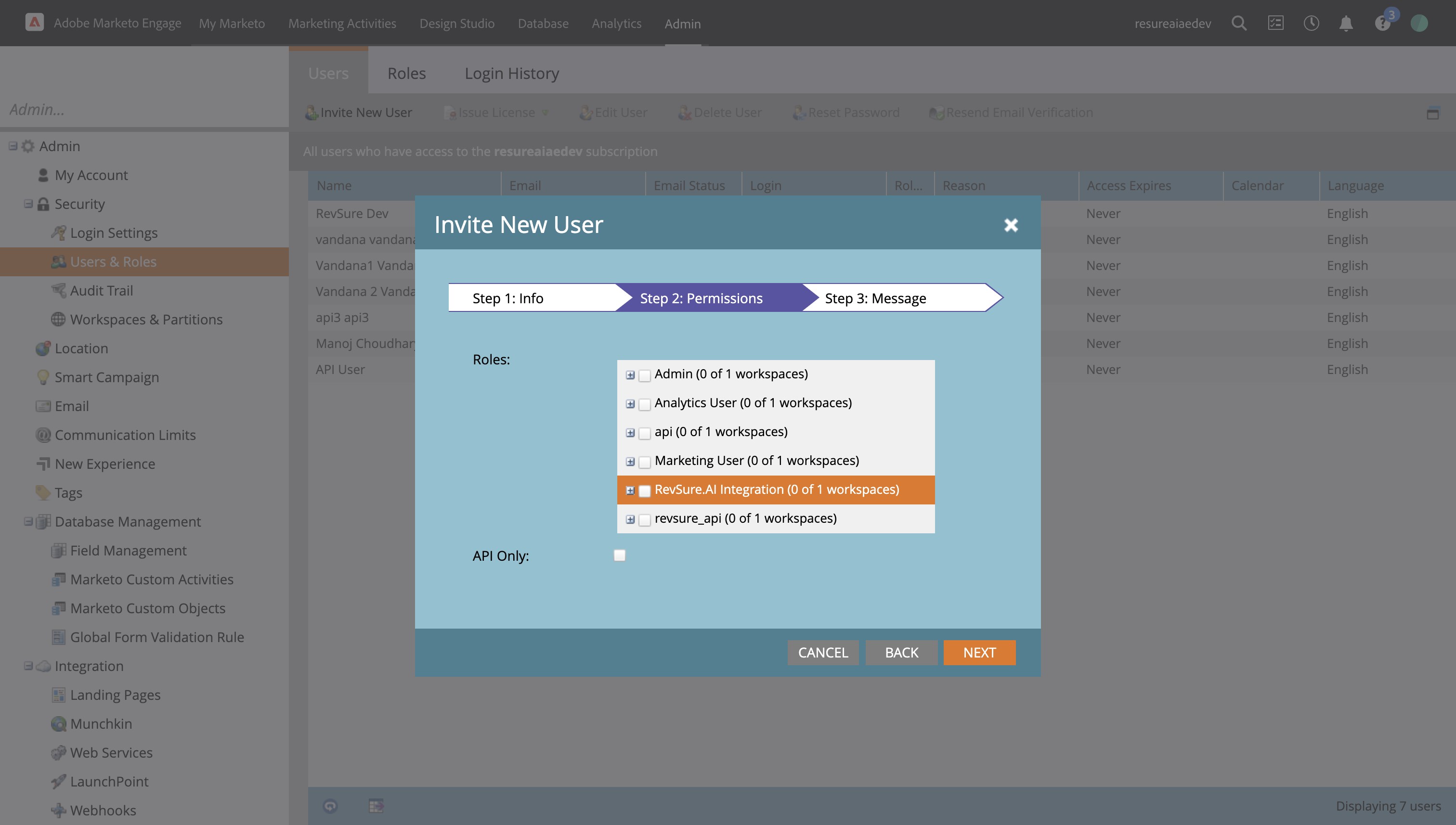
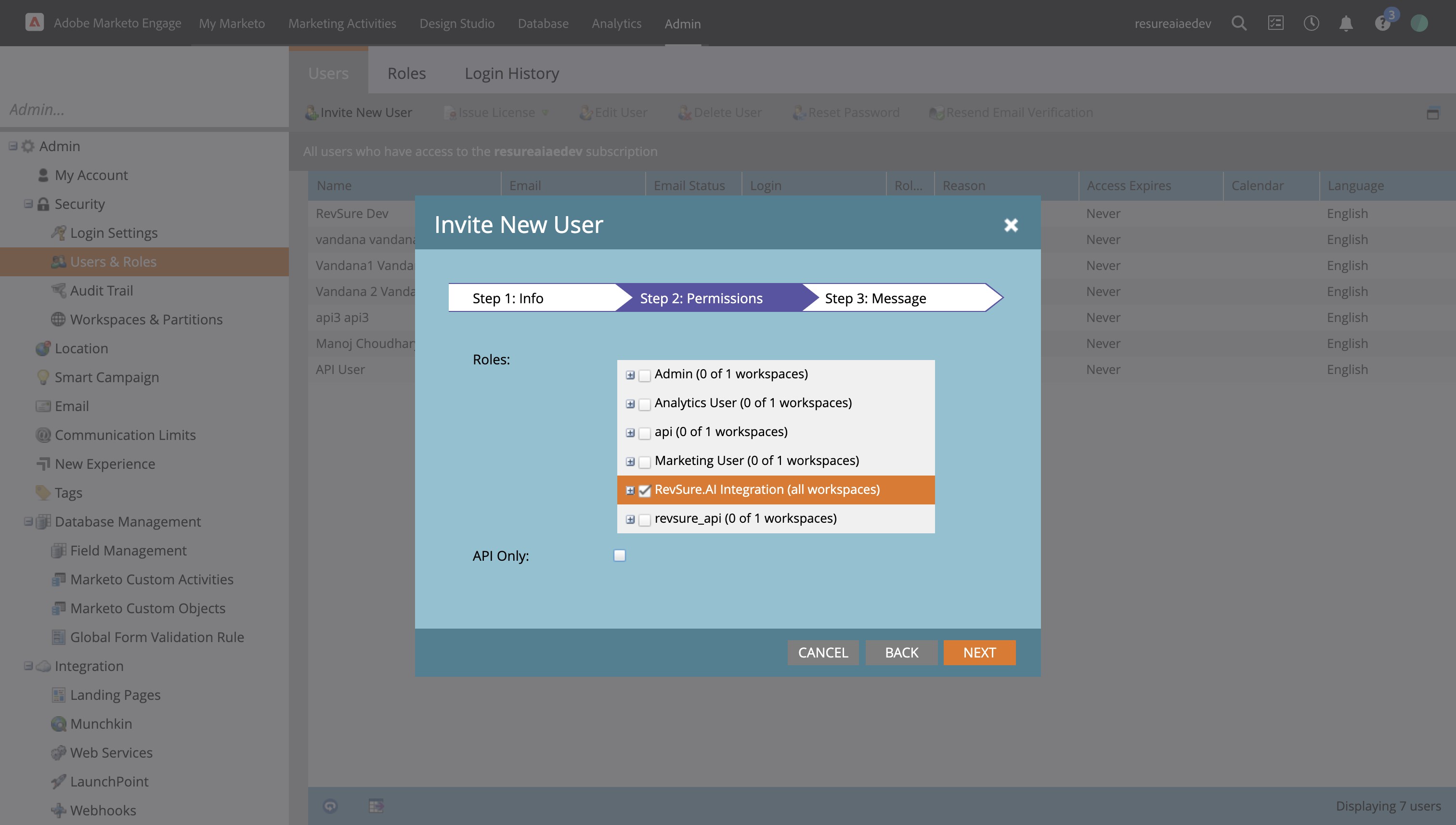
27. Select the Role created
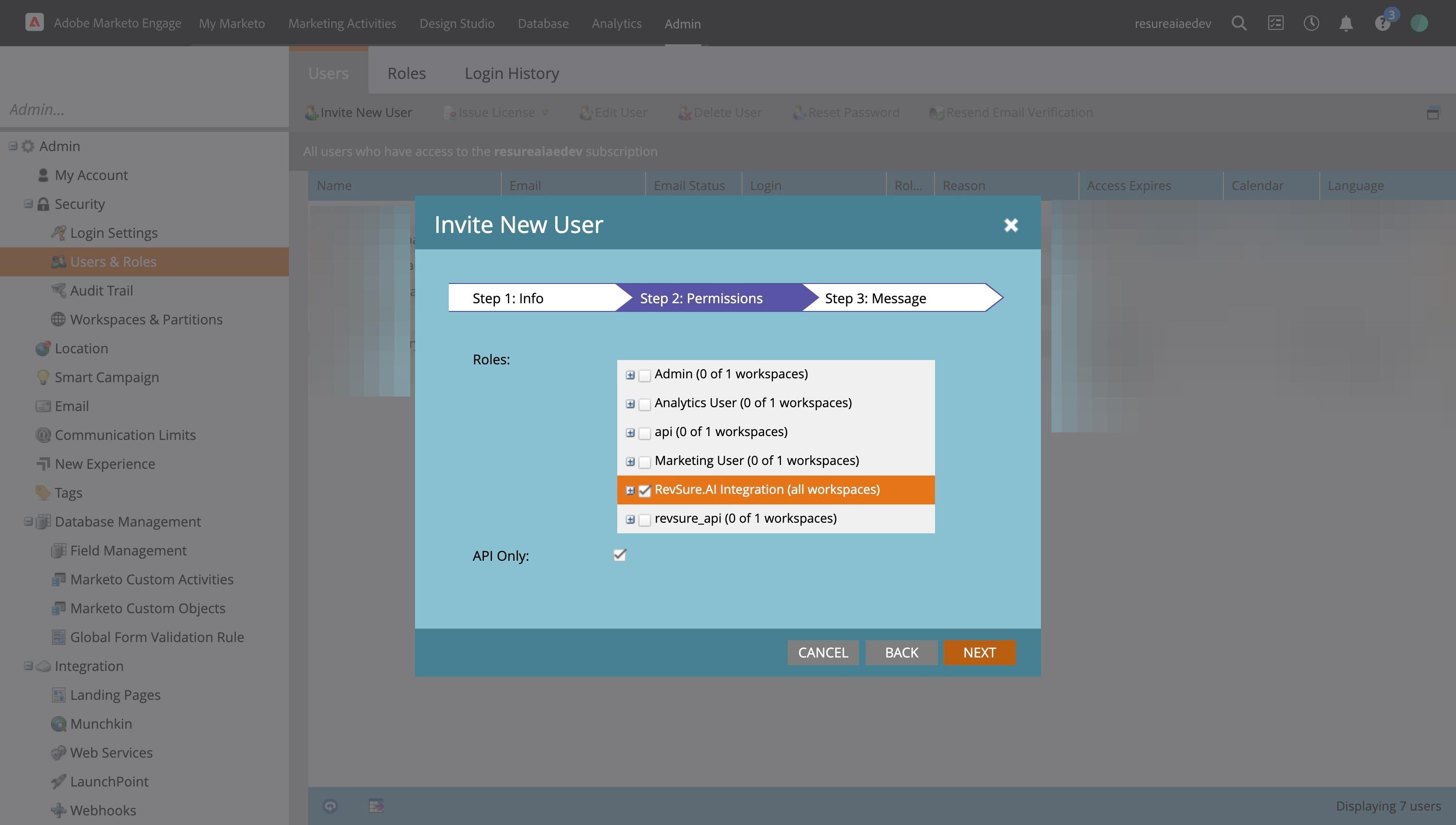
28. Enabled API Only
29. Click "NEXT"
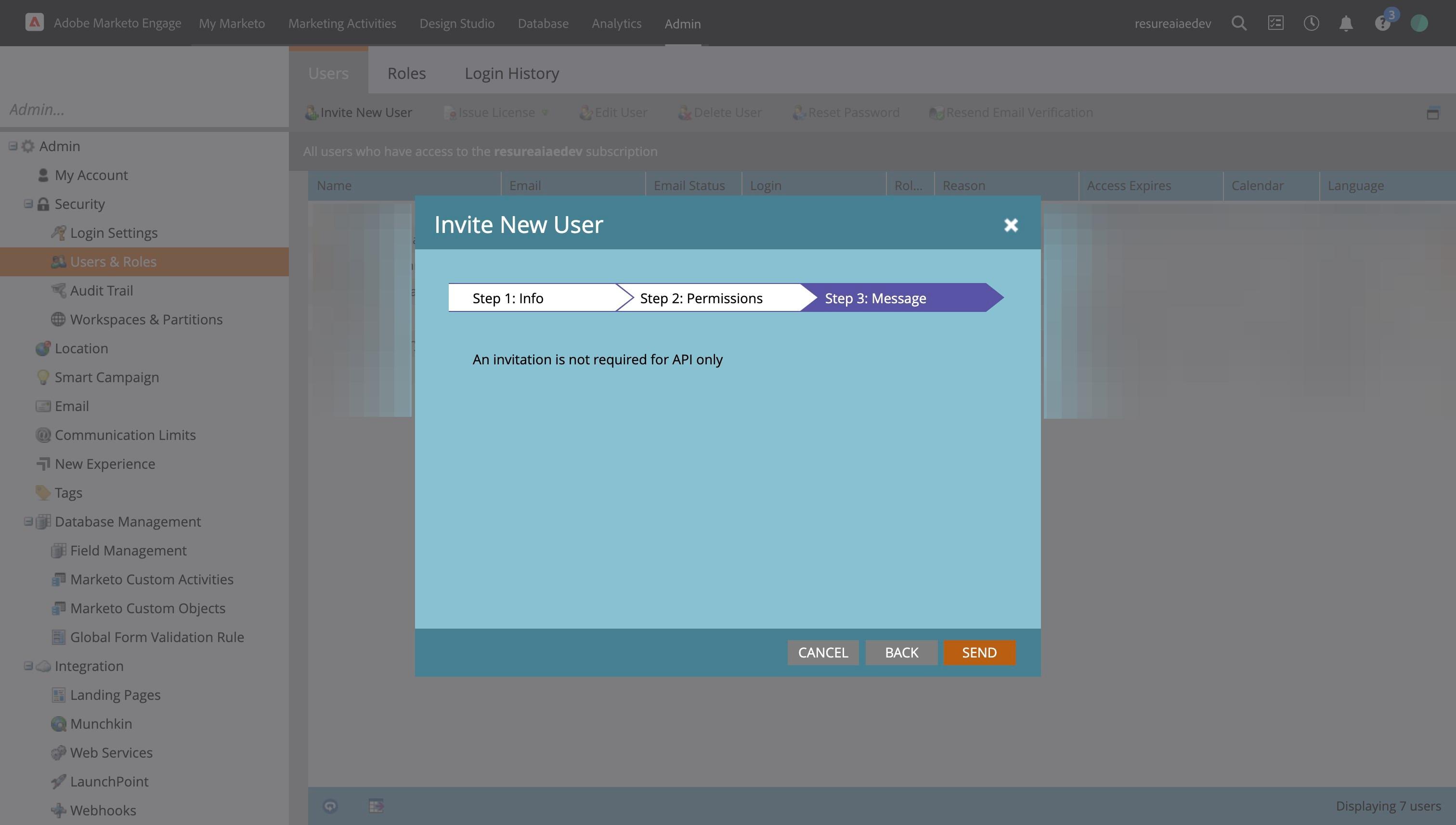
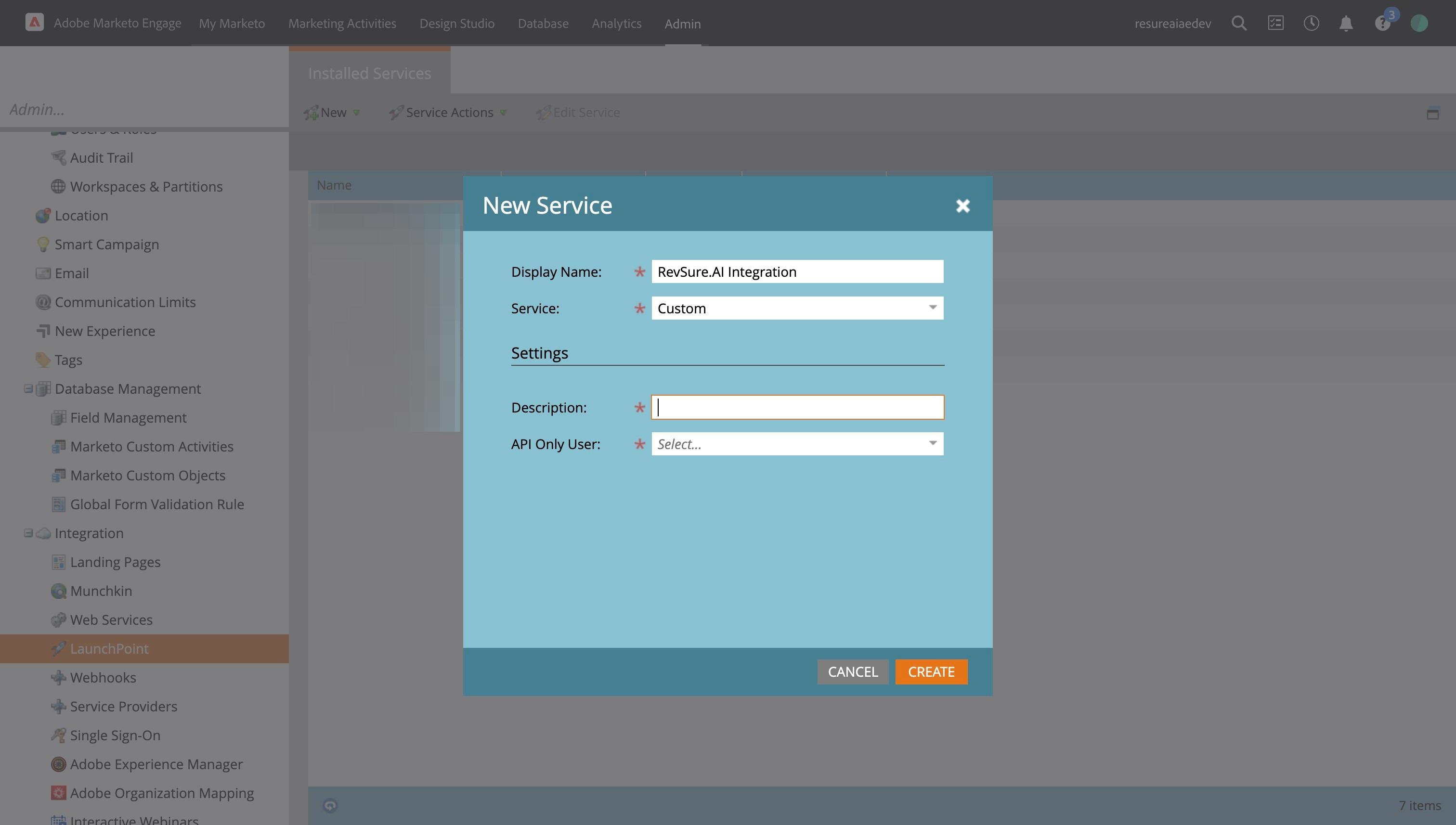
30. Click "SEND"
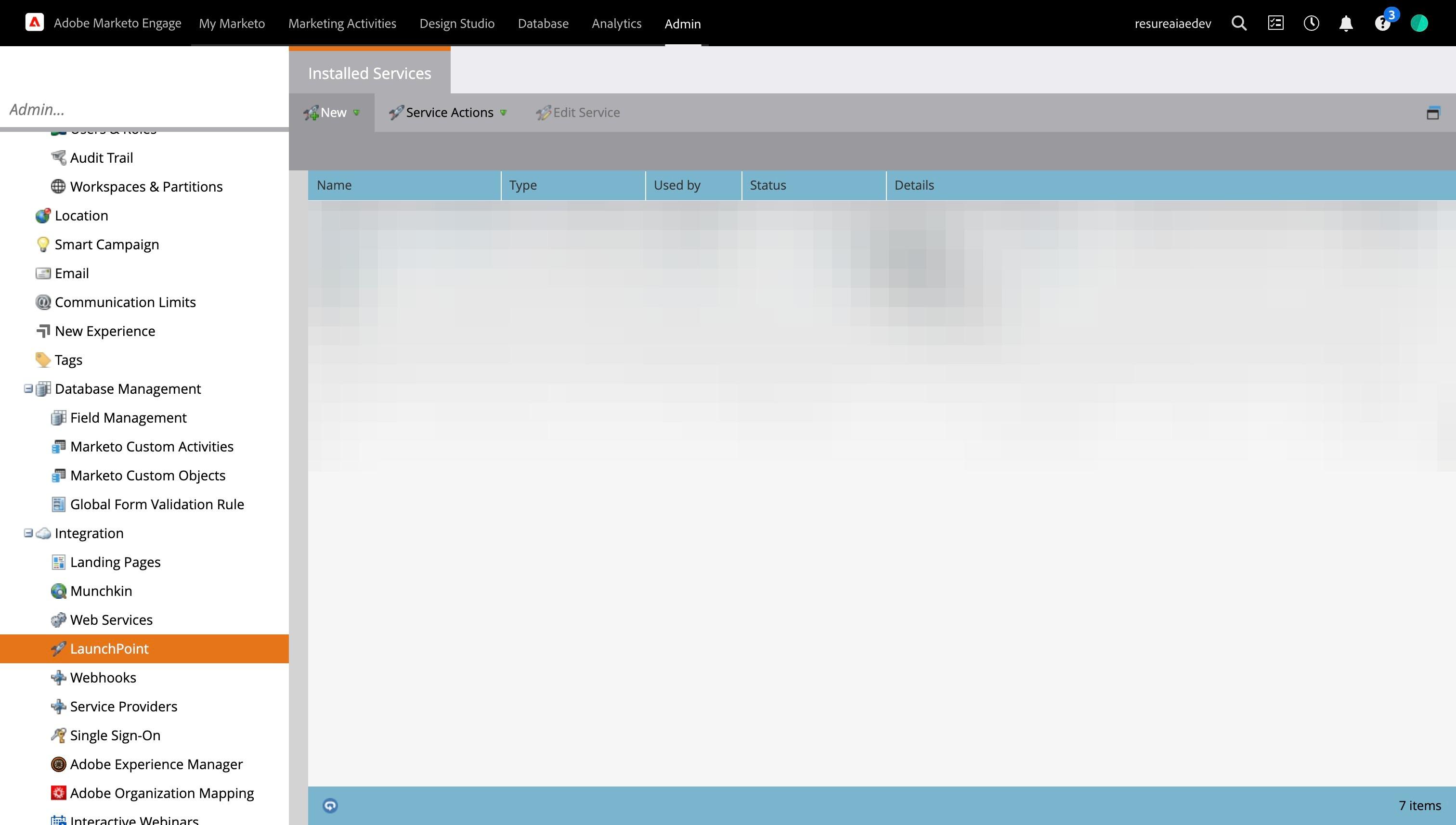
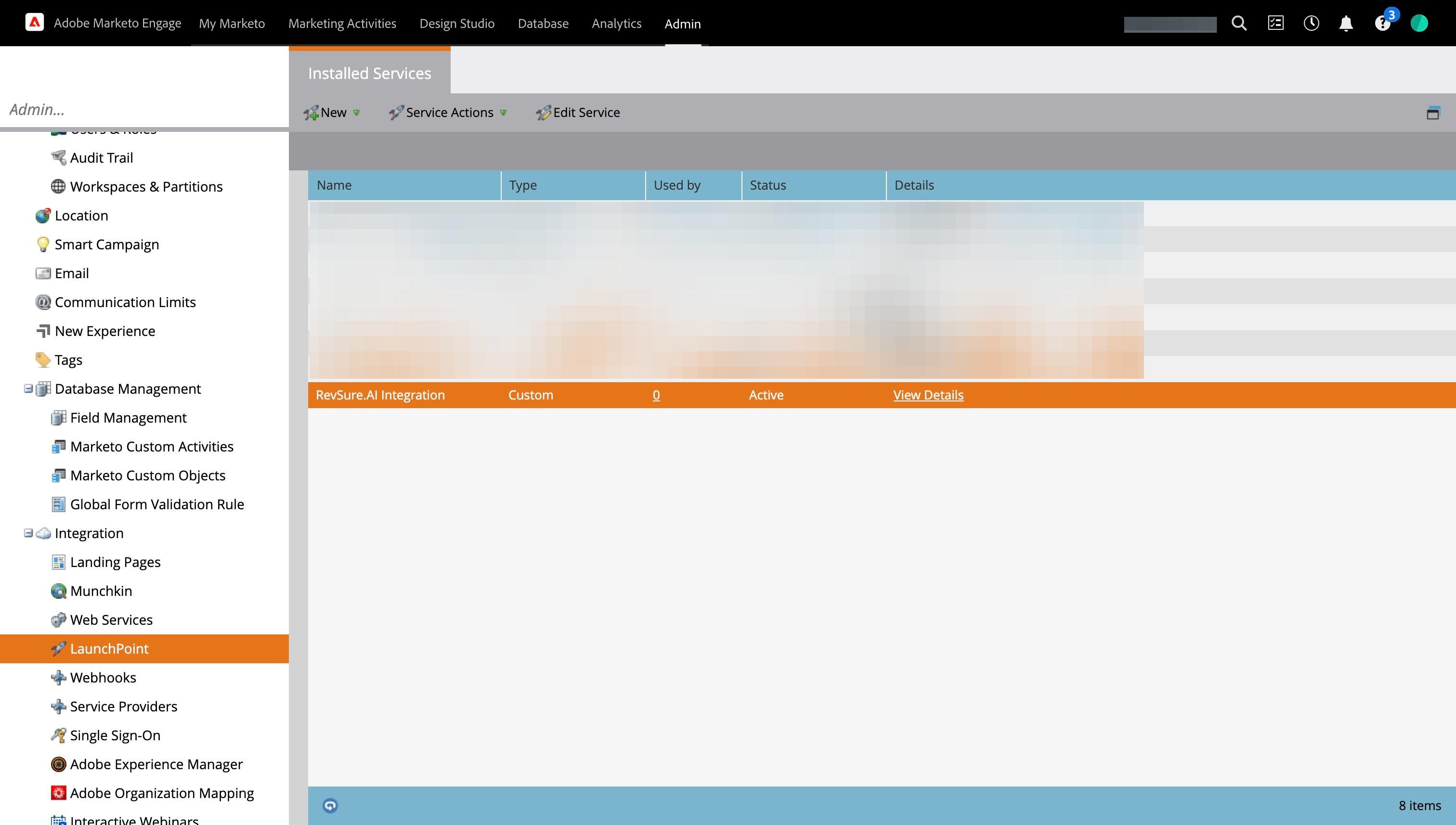
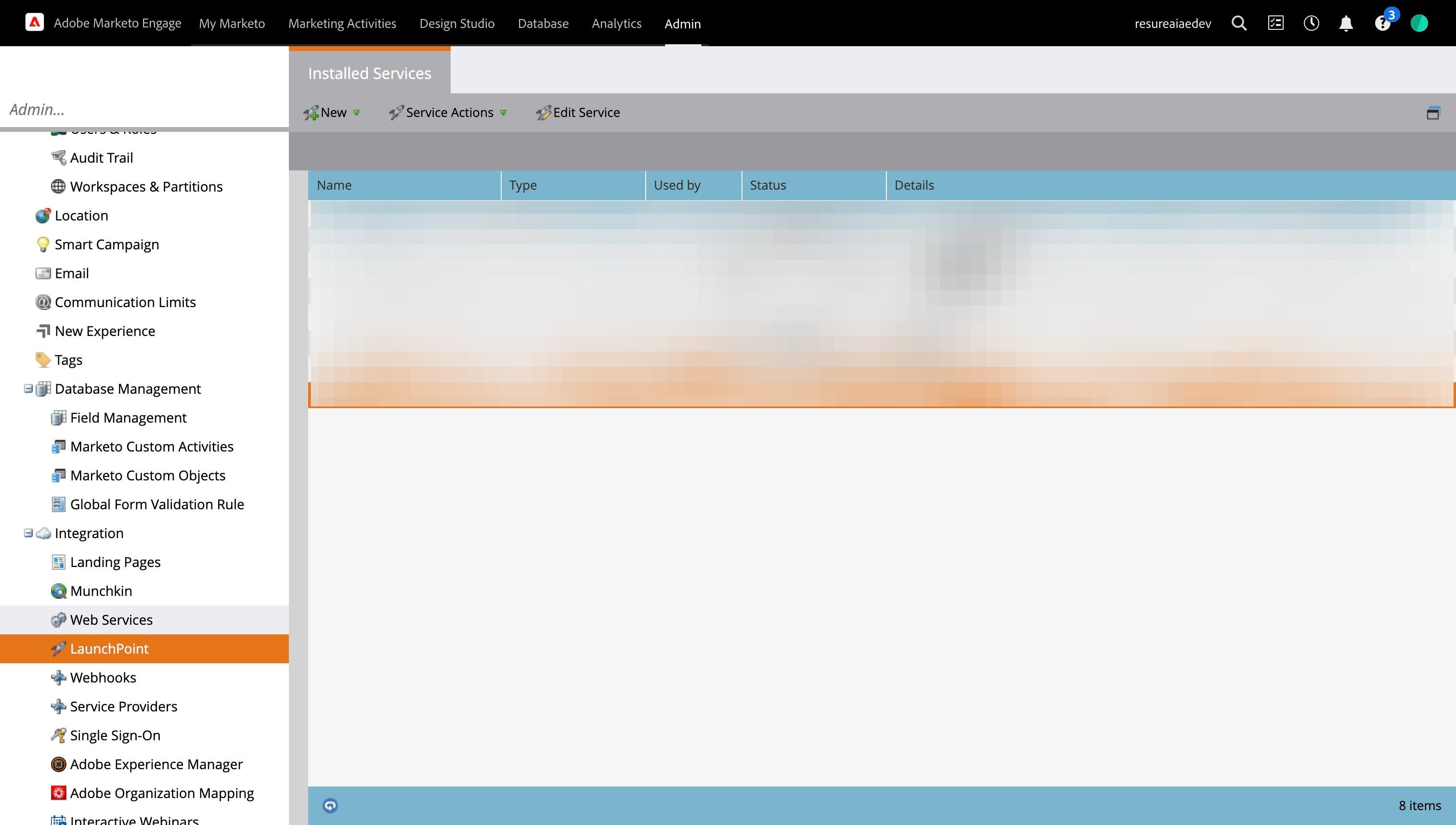
31. Click "LaunchPoint"
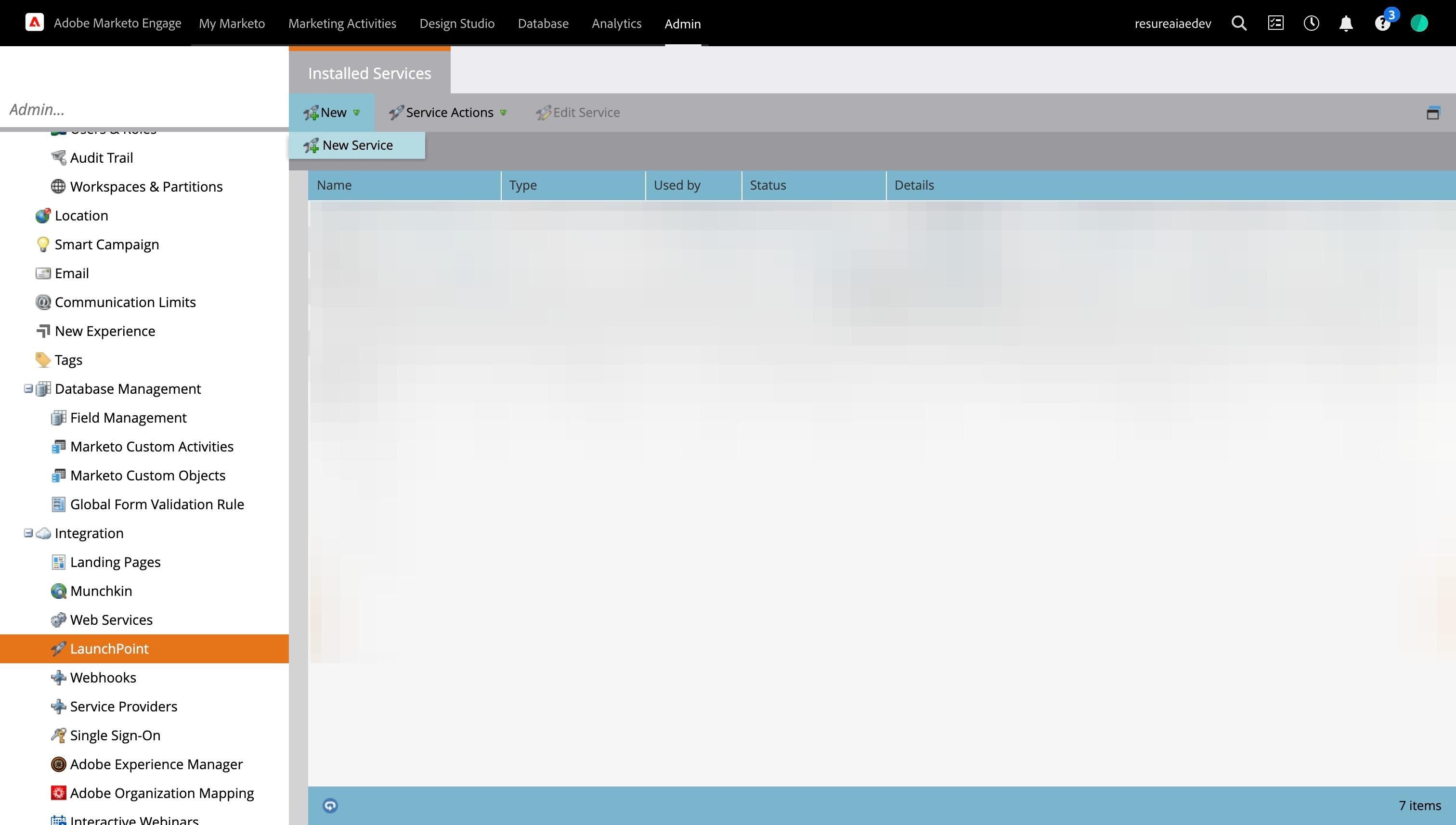
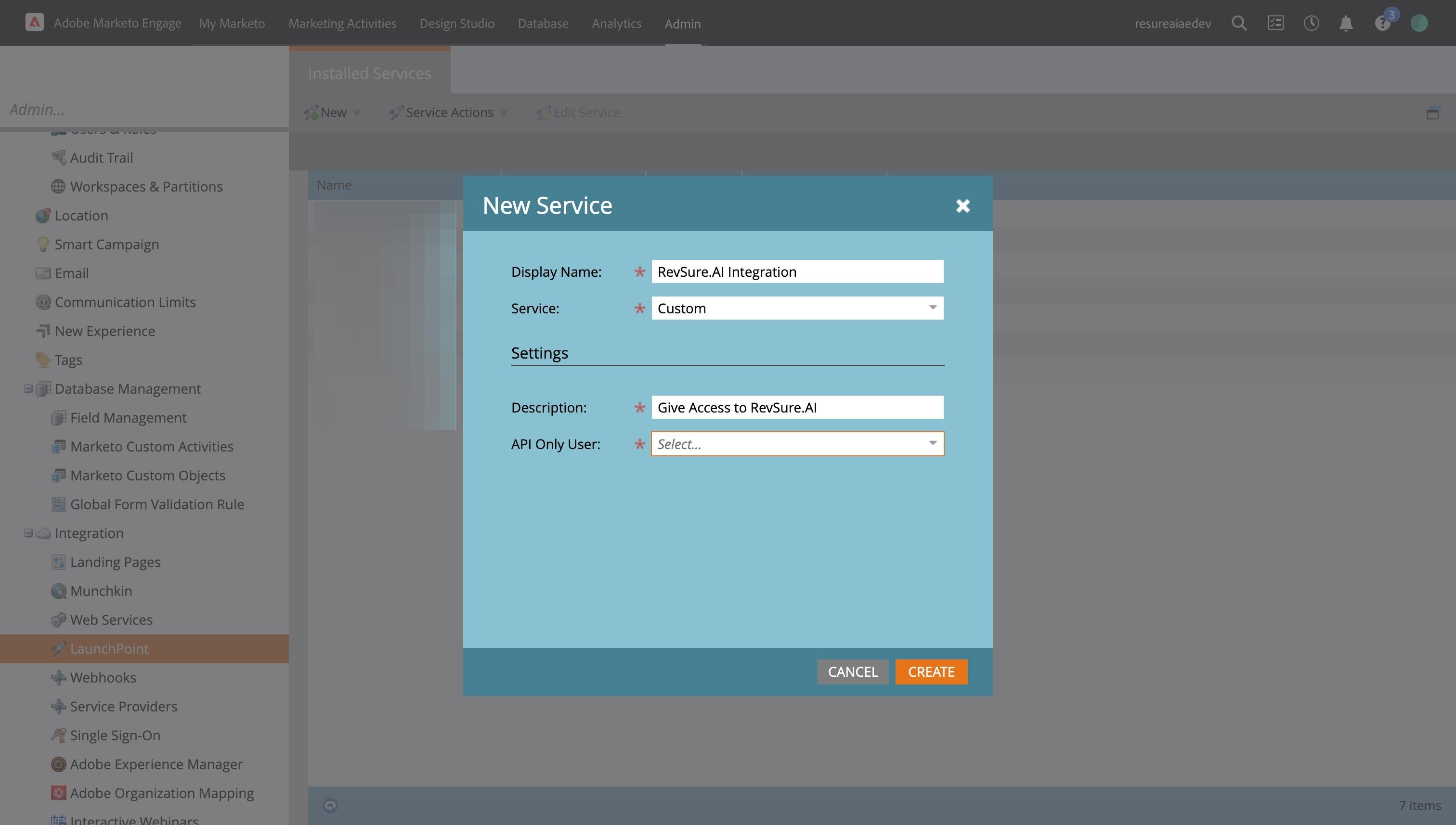
32. Click "New"
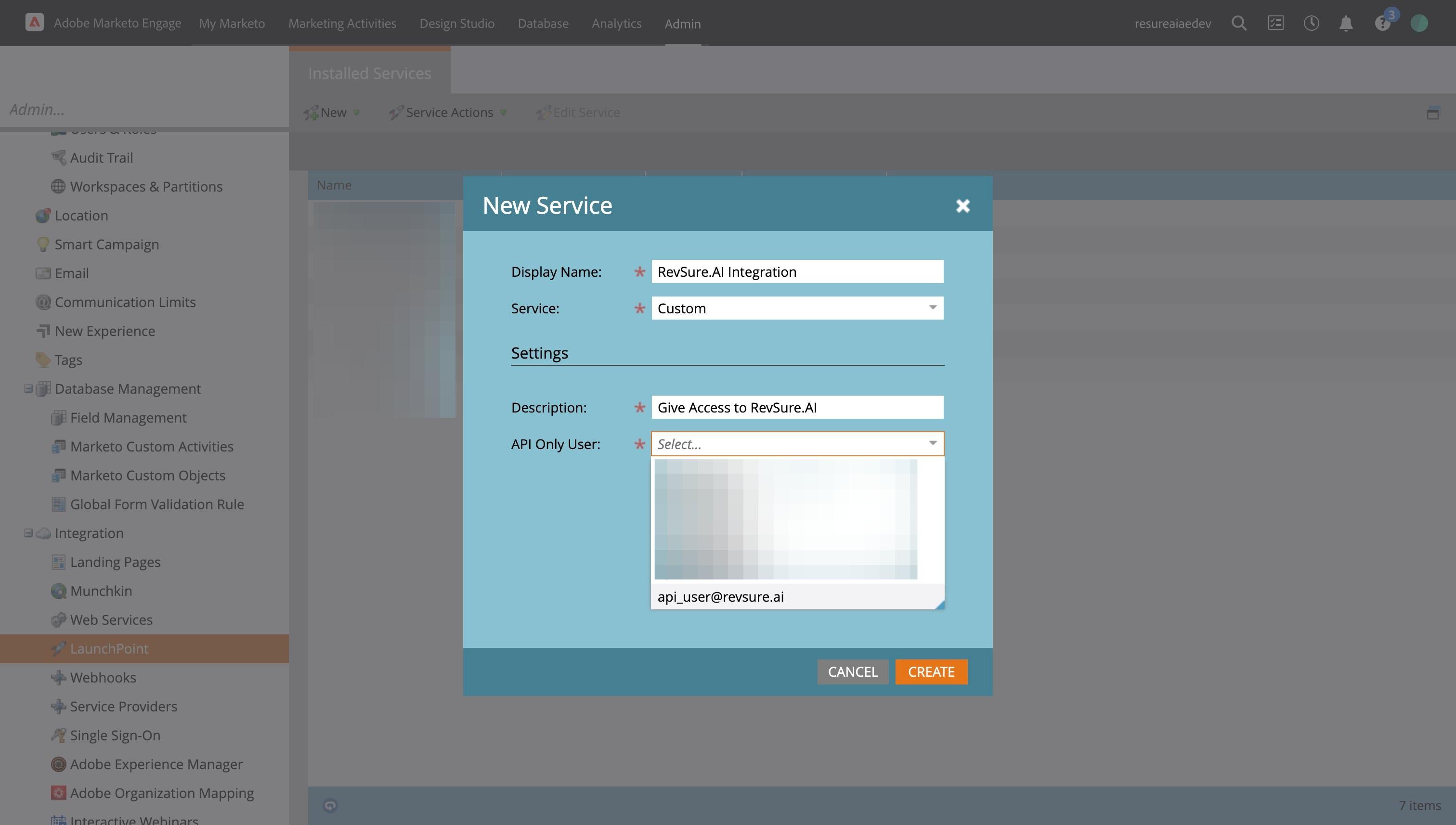
33. Click "New Service"
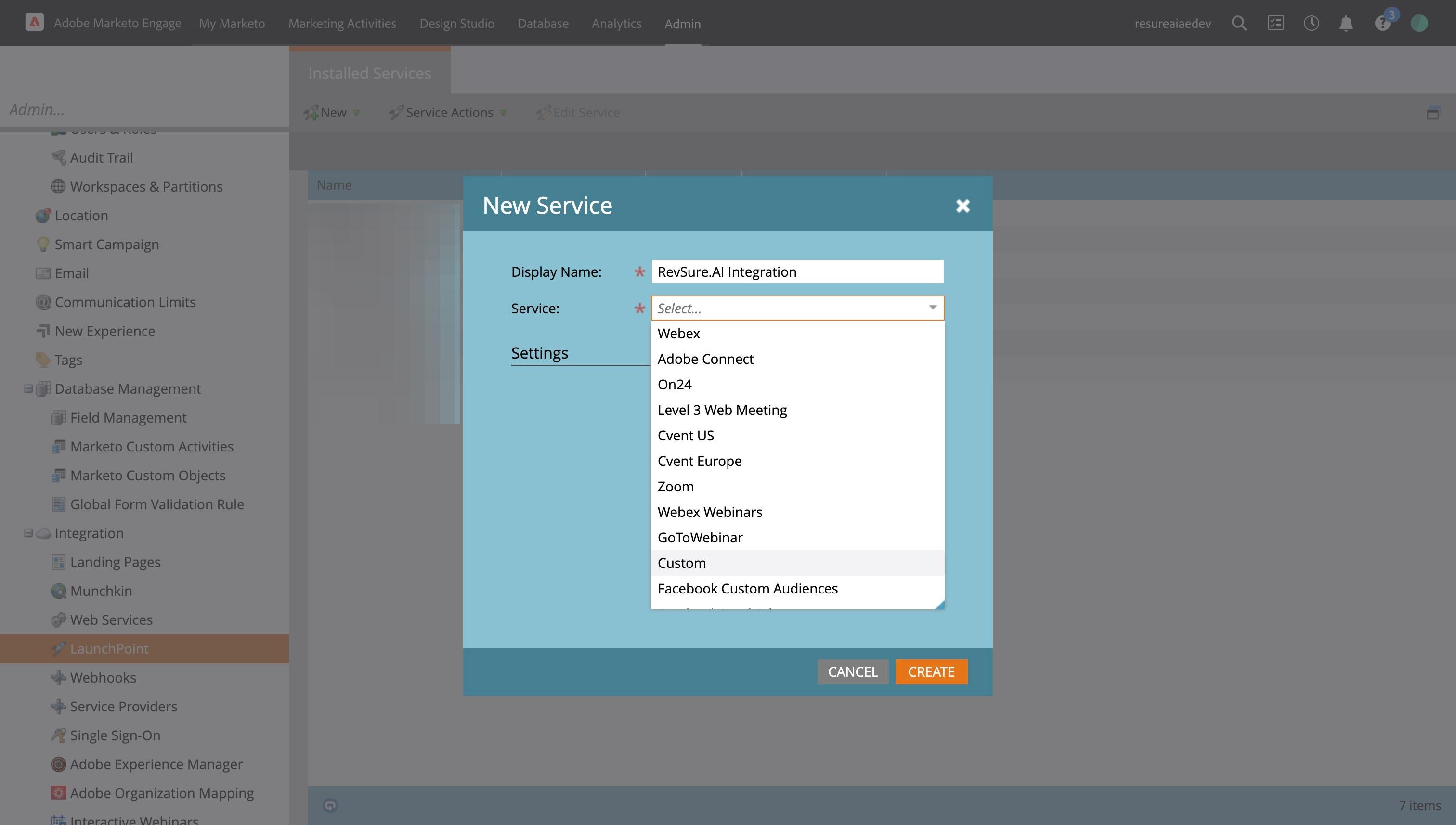
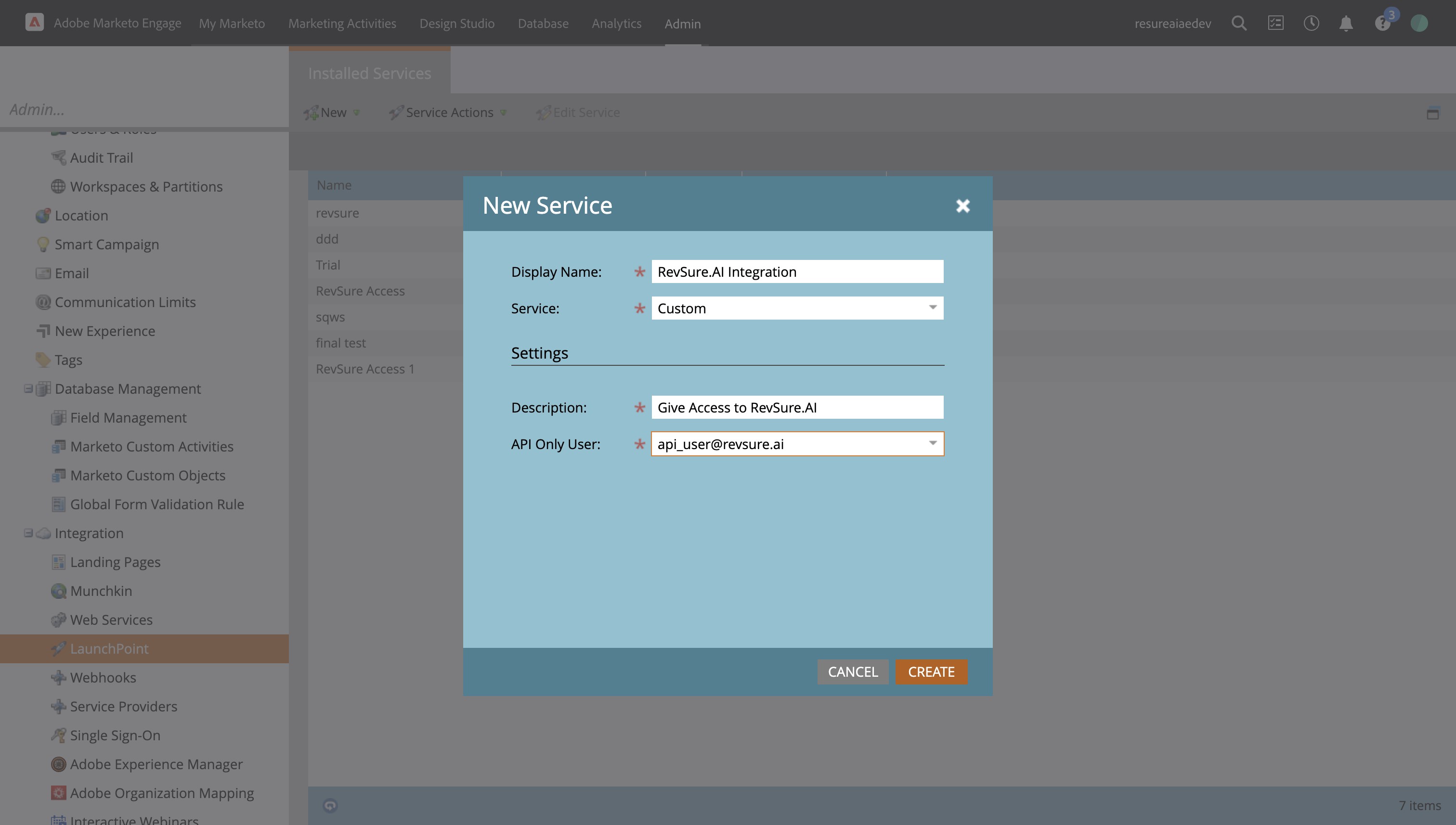
34. Enter Display Name and Click on Service
35. Click "Custom"
36. Click the "Description:" field
37. Click the "API Only User:" field
38. Select the user created above
39. Click "CREATE"
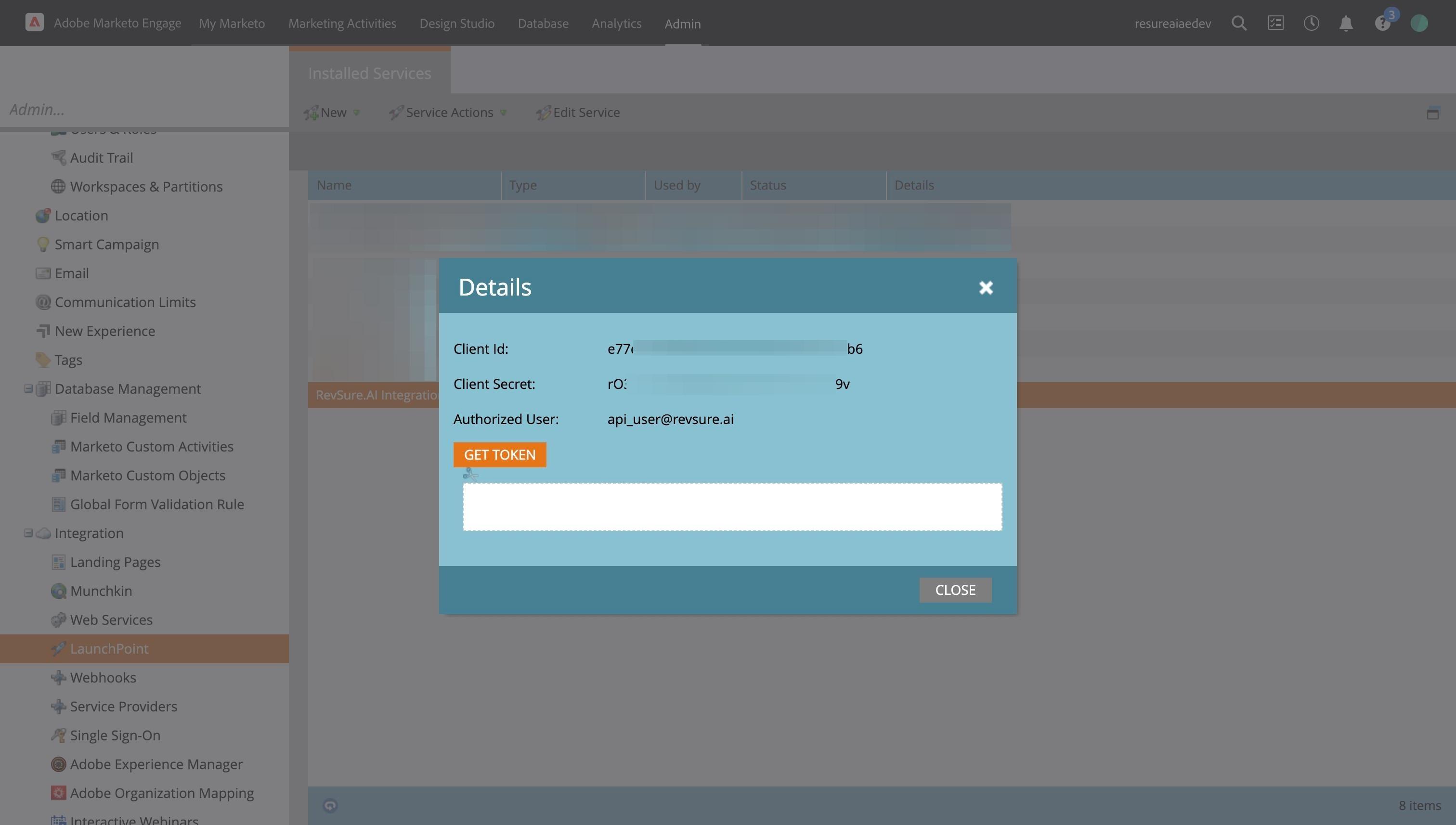
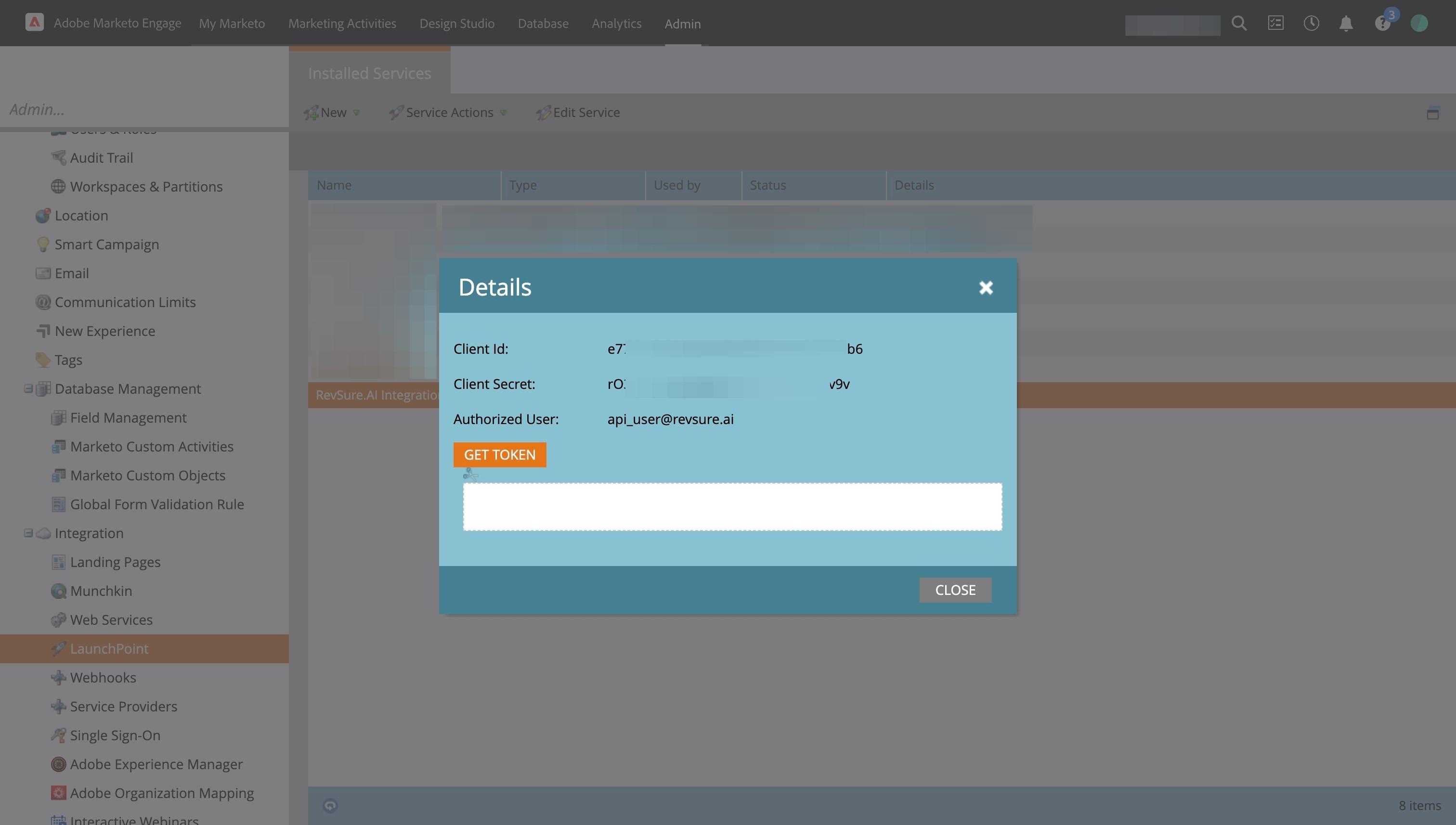
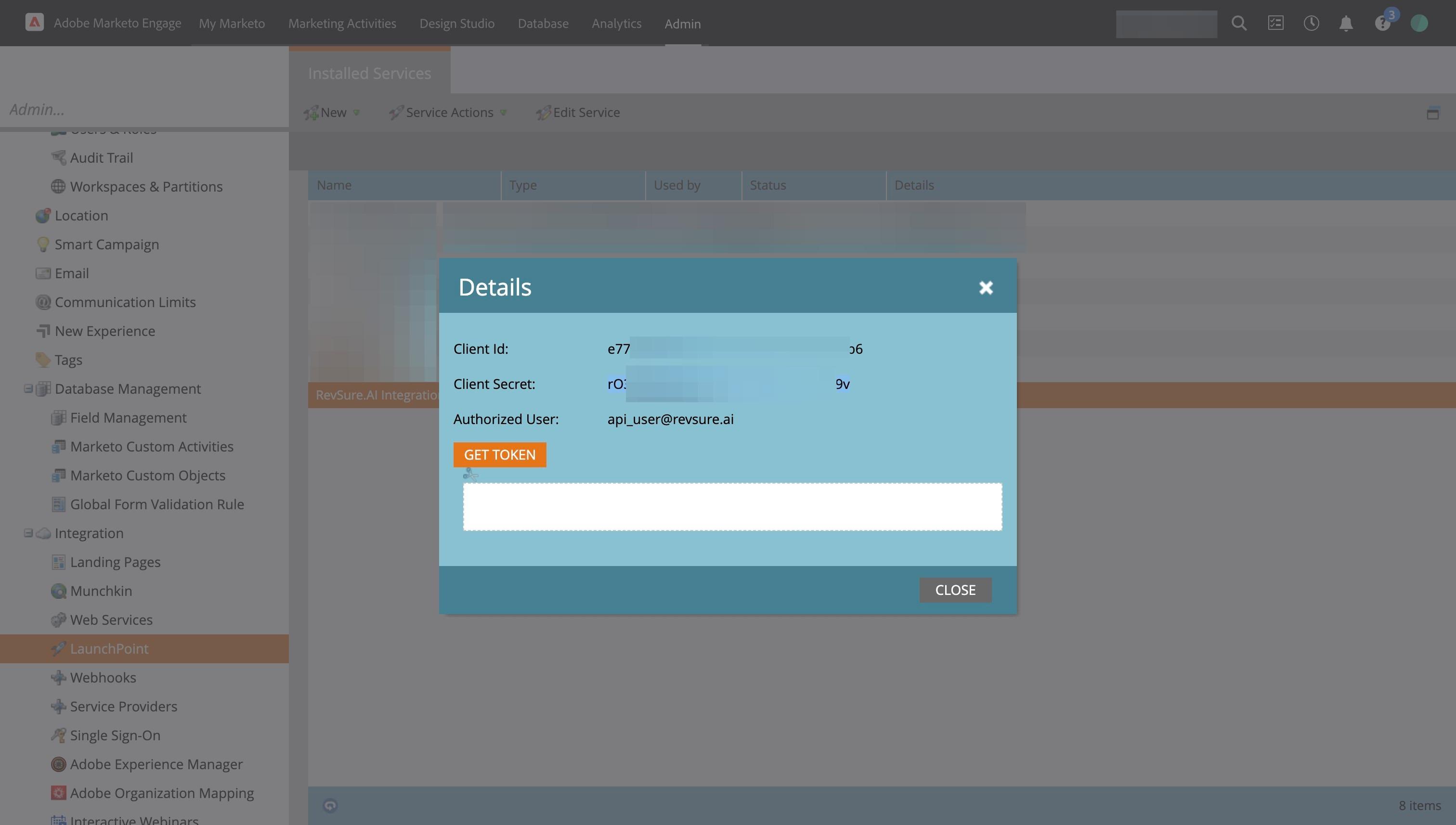
40. Click "View Details"
41. Copy Client ID
42. Navigate to RevSure tab and Paste the Client ID
43. Navigate to Marketo and Copy the Client Secret
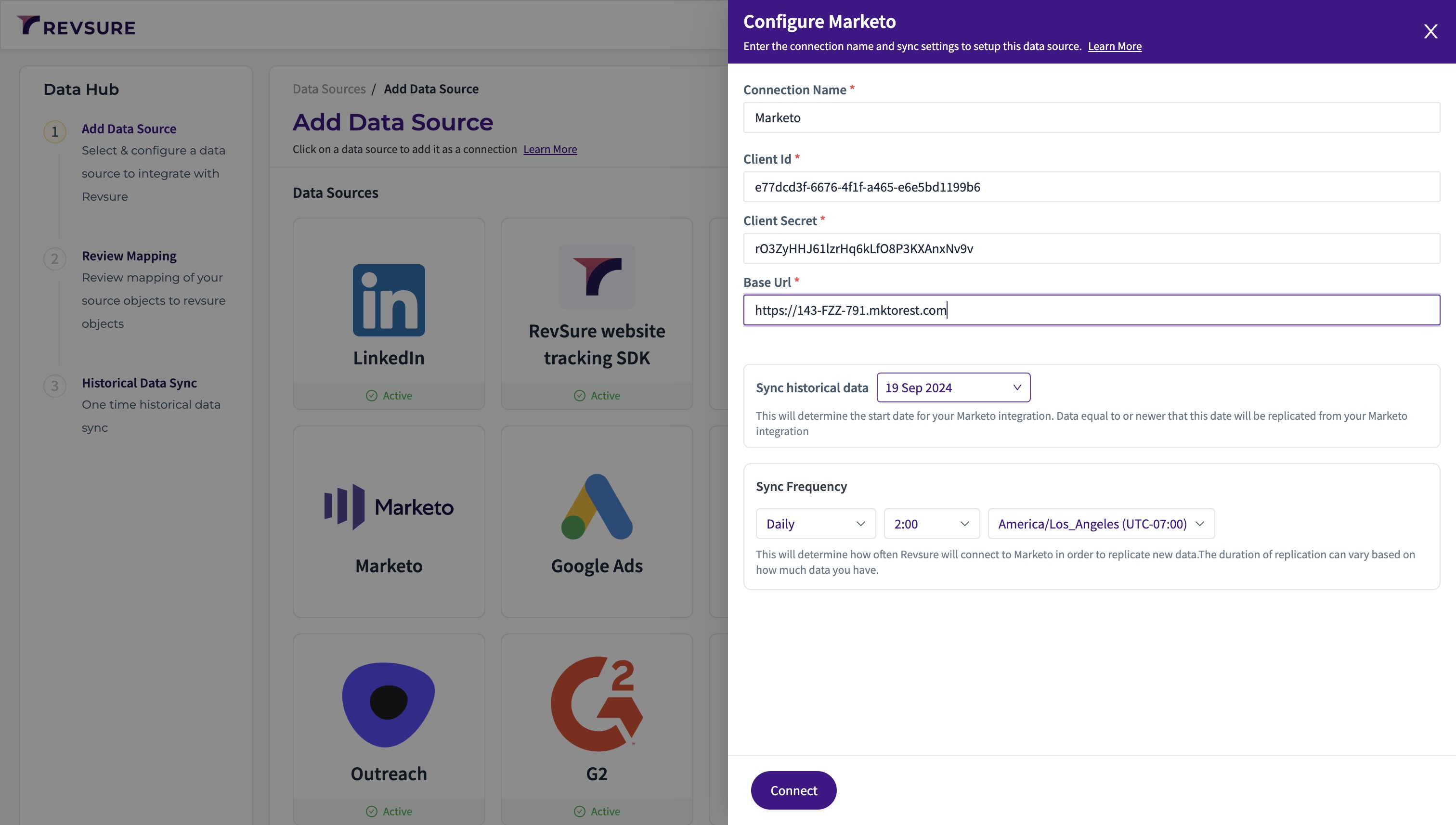
44. Navigate to RevSure tab and Paste Client Secret
45. Navigate to Marketo tab and close the model
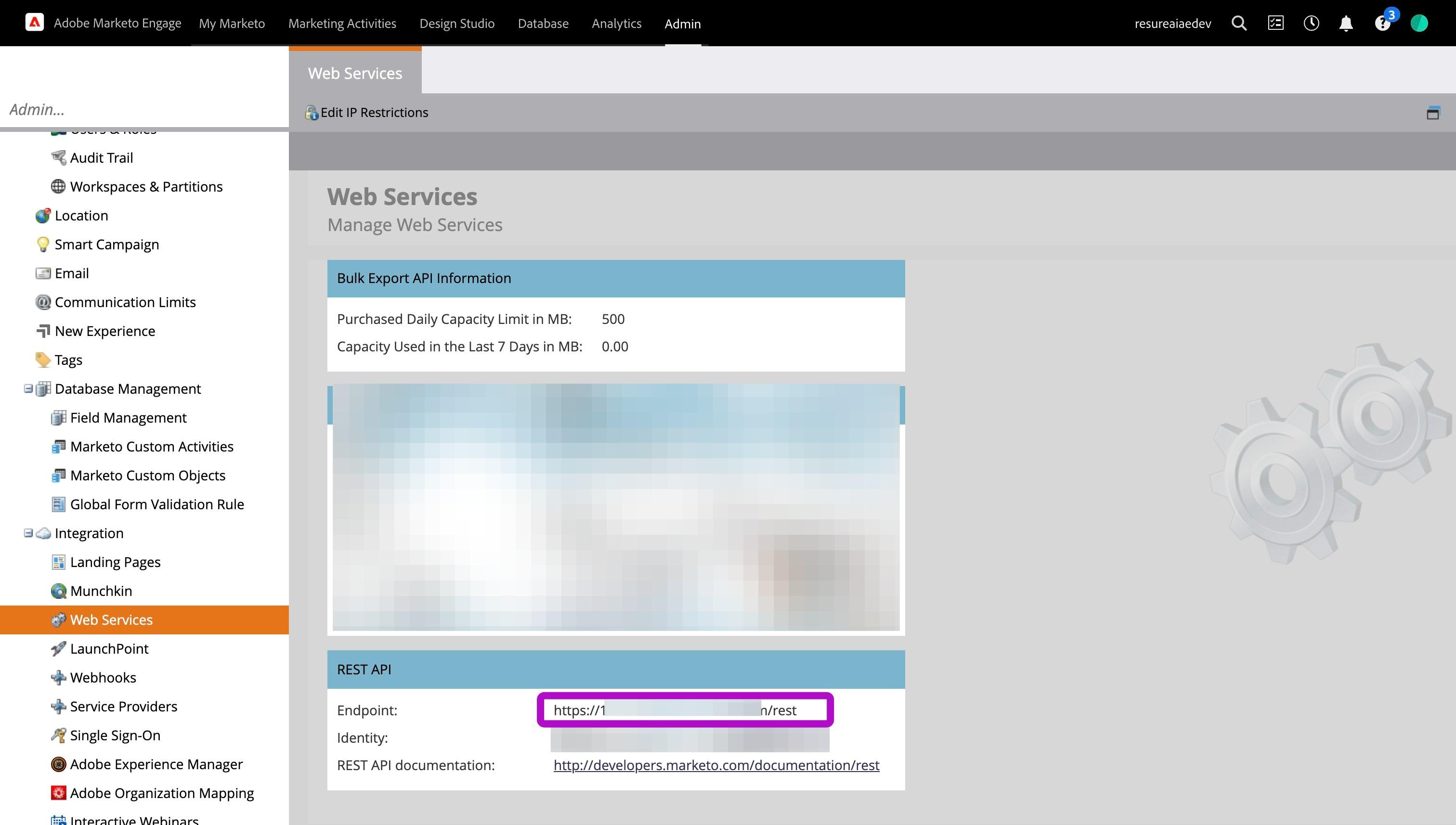
46. Click on Web Services
47. Copy the endpoint URL without /rest
48. Navigate to RevSure tab and Paste the URL (Example: [https://XXX-XXX-XXX.mktorest.com]
49. Select historical date to sync from
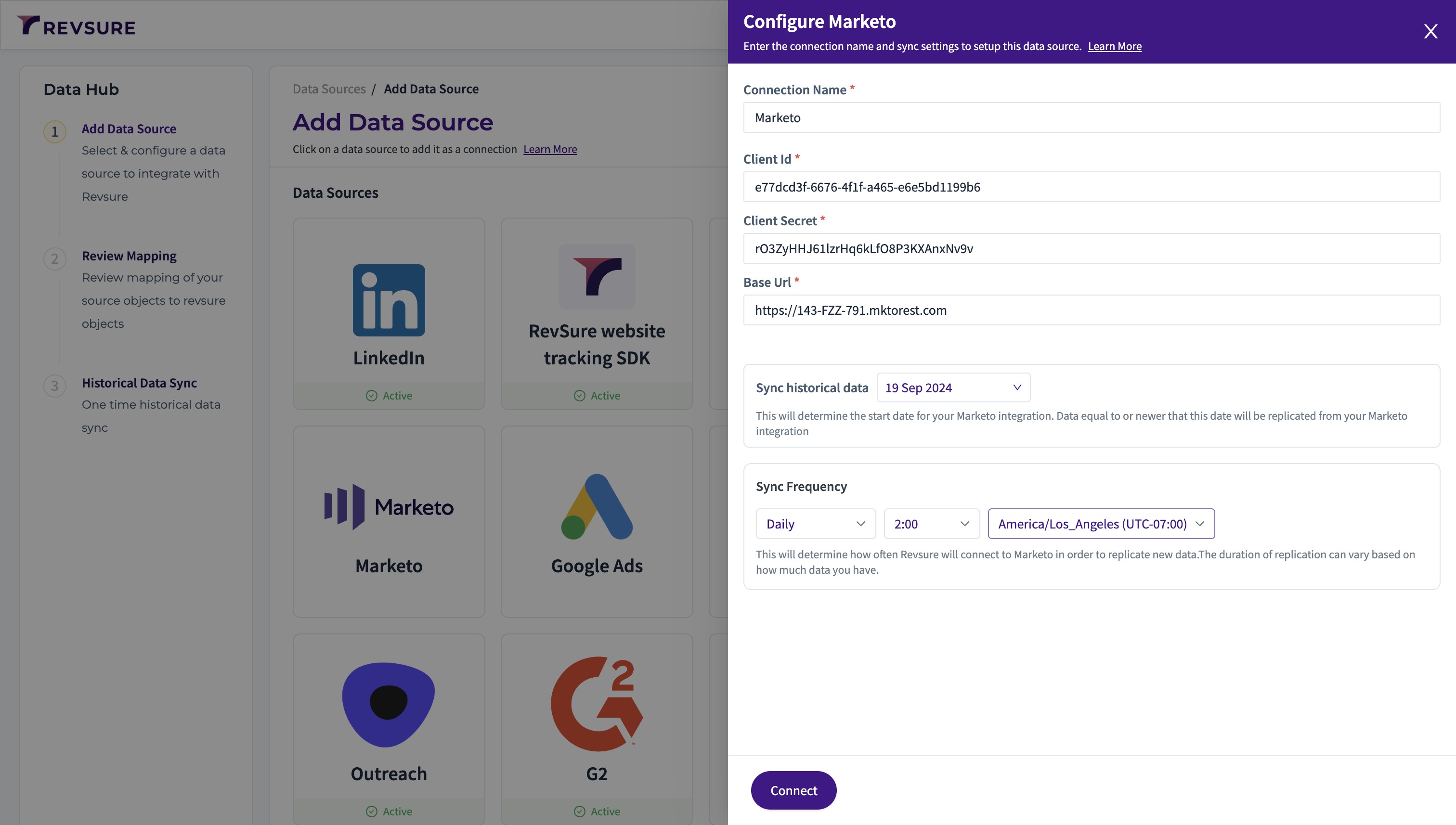
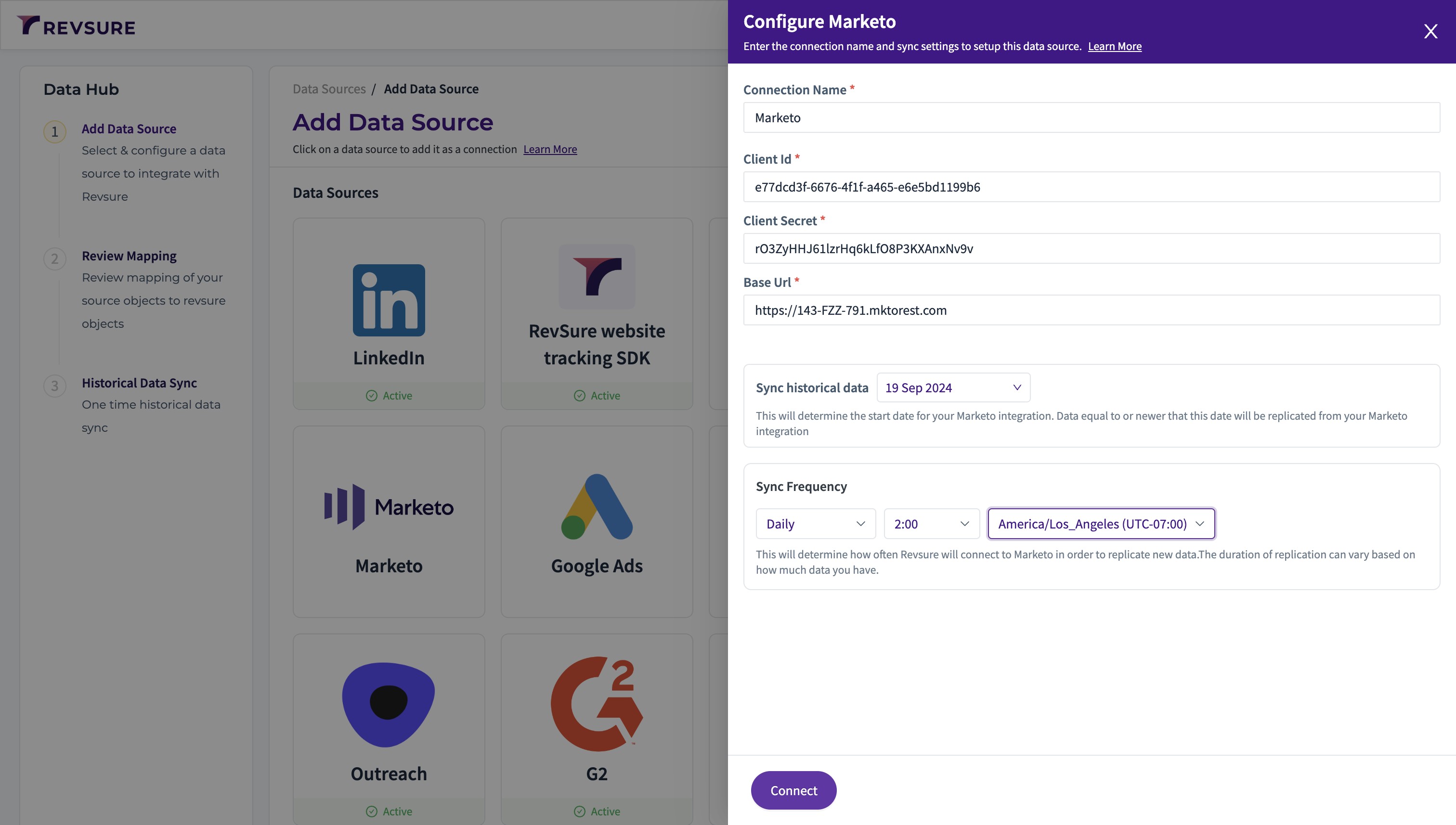
50. Select sync frequency, time and timezone to trigger the sync
51. Click "Connect"
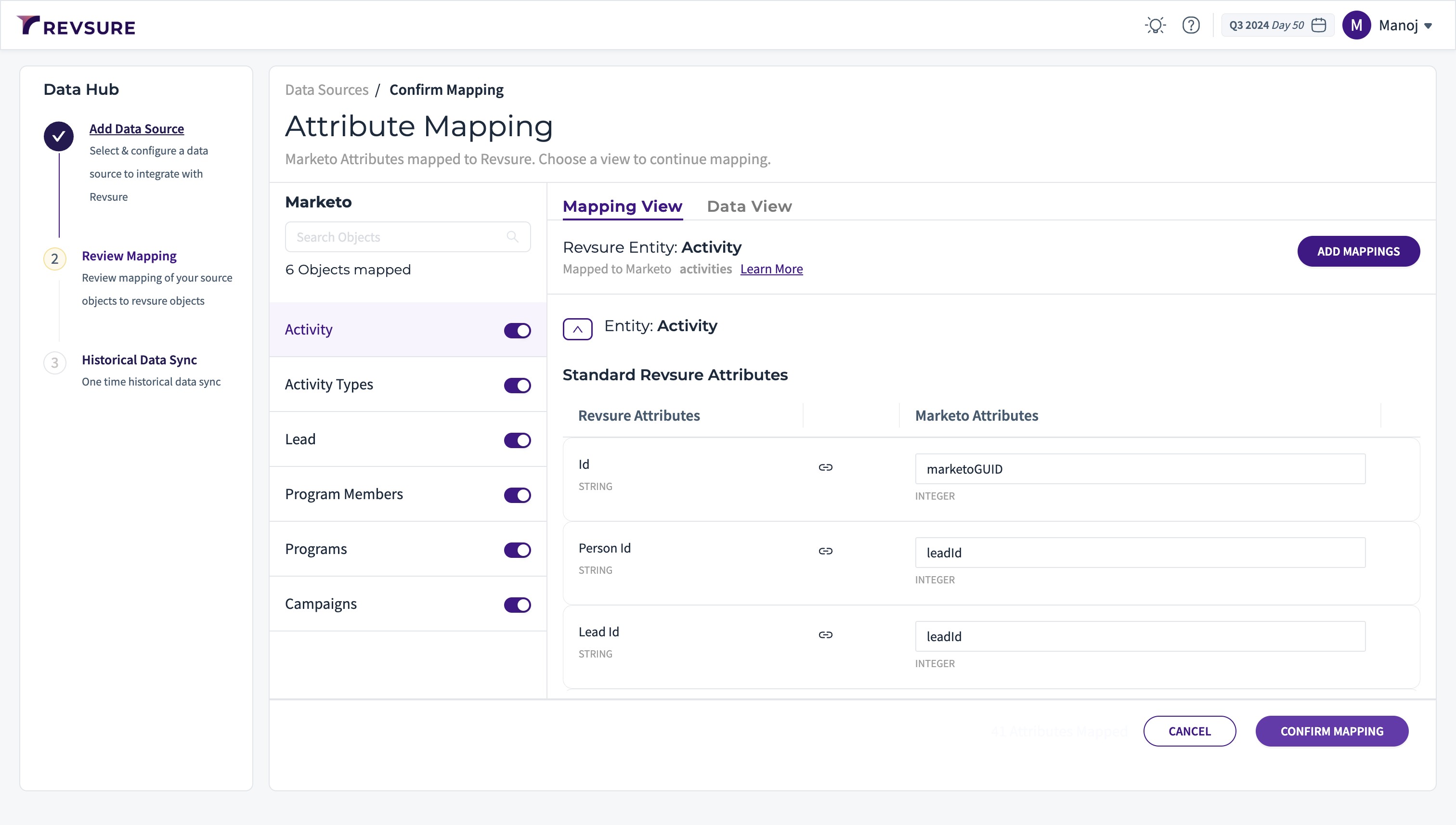
52. Click "CONFIRM MAPPING" to confirm mapping
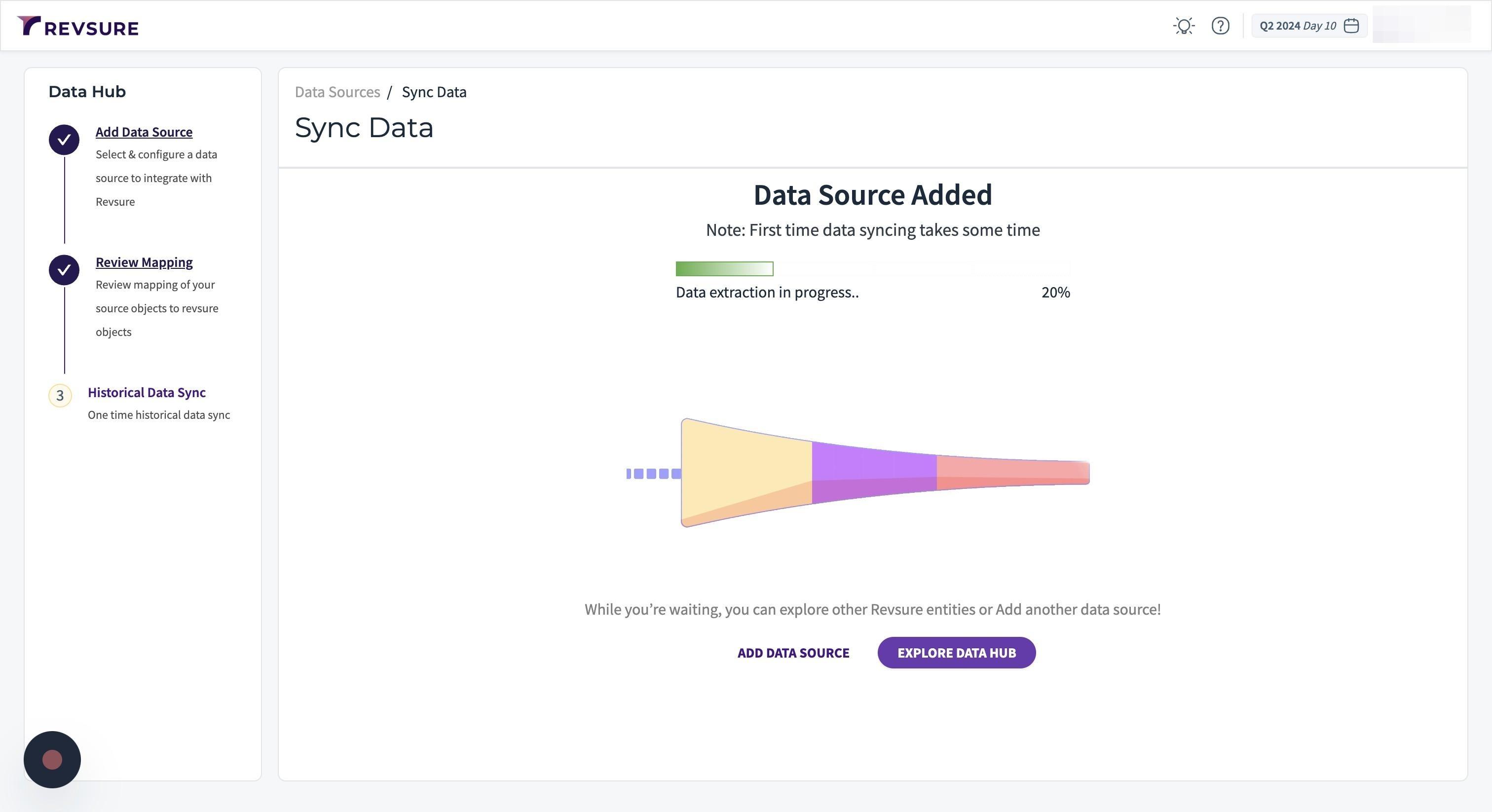
53. Data source will be added, and you will be able to view sync status